
GravelRoadCop
Members
-
Joined
Everything posted by GravelRoadCop
-
-
-
-
From the album: GravelRoadCop
Who likes it ? -
-
-
-
-
-
From the album: GravelRoadCop
Working on a Calgary Fire Department inspired MRU template for @thegreathah's FPIU 2016 model. The concepts are concepts, and not final, but suggestions are welcomed. -
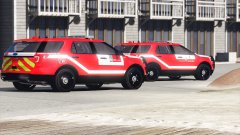
From the album: GravelRoadCop
Working on a Calgary Fire Department inspired MRU template for @thegreathah's FPIU 2016 model. The concepts are concepts, and not final, but suggestions are welcomed. -
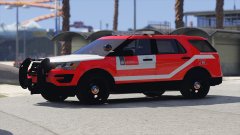
From the album: GravelRoadCop
Working on a Calgary Fire Department inspired MRU template for @thegreathah's FPIU 2016 model. The concepts are concepts, and not final, but suggestions are welcomed. -
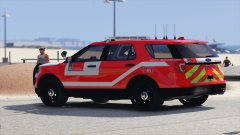
From the album: GravelRoadCop
Working on a Calgary Fire Department inspired MRU template for @thegreathah's FPIU 2016 model. The concepts are concepts, and not final, but suggestions are welcomed. -

From the album: GravelRoadCop
Working on a Calgary Fire Department inspired MRU template for @thegreathah's FPIU 2016 model. The concepts are concepts, and not final, but suggestions are welcomed. -
 Yes, I know. I live in the same province as you do, so I'm very familiar with the current RCMP specs. I'm just making sure he isn't basing it off the Mounties.
 -
RCMP spec ?
-
UPDATE 1.0.5 -1/22/2017 Added 3 new siren models to the pack : - Galls Street Thunder 800 Siren ( installed as default) - Whelen 295SLSA1 - Whelen Epsilon ( Special thanks to @crazytaxi1000 for providing me a clean private source to record tones.)
-
 Yes, the default sirens are changed out. Just install the 'vehicles.oac' using OpenIV.
- 221 comments
- 40 reviews
-
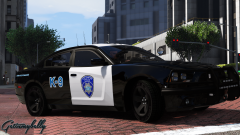 Hot Mama !
 -
-
Mpc? Are they using ELS? If so, ELS is using the standard police siren tone slots and my mod overwrites them.
- 221 comments
- 40 reviews
 Release it :)
Find the siren you want to use, refer to the hashtag list, copy the hashtag to the tones and install it in the vehicle folder. For example, if you wish to use the smart siren tones to replace the installed mastercom tones, just go to the smart siren folder, drag all of the tones into the vehicle folder to overwrite the mastercom files, and update it via openIV. If you want to use a whelen siren tone for the fire truck, again, find the tones, use the firetruck hashtag names, install the tones in the vehicle folder and update via openiv. Does this make sense?
Release it :)
Find the siren you want to use, refer to the hashtag list, copy the hashtag to the tones and install it in the vehicle folder. For example, if you wish to use the smart siren tones to replace the installed mastercom tones, just go to the smart siren folder, drag all of the tones into the vehicle folder to overwrite the mastercom files, and update it via openIV. If you want to use a whelen siren tone for the fire truck, again, find the tones, use the firetruck hashtag names, install the tones in the vehicle folder and update via openiv. Does this make sense?- 221 comments
- 40 reviews
-
-

- 2
-