


NefariousBonne
Members
-
Joined
Everything posted by NefariousBonne
-
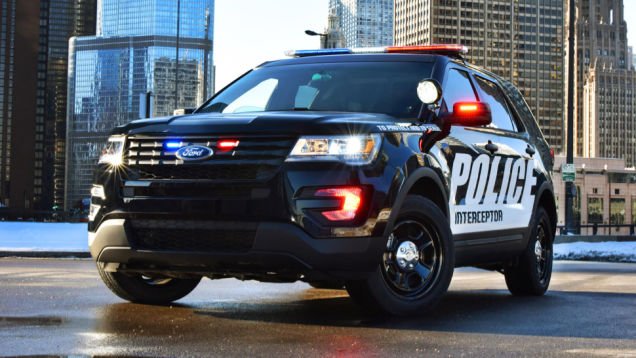
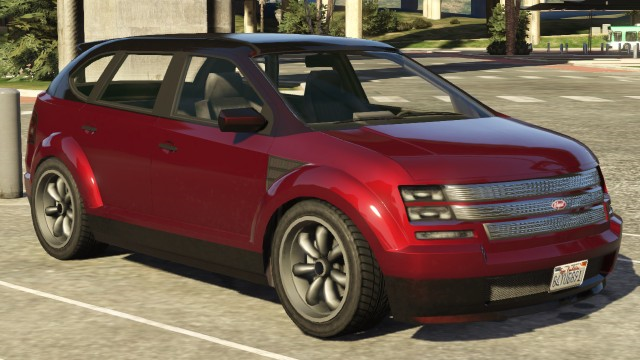
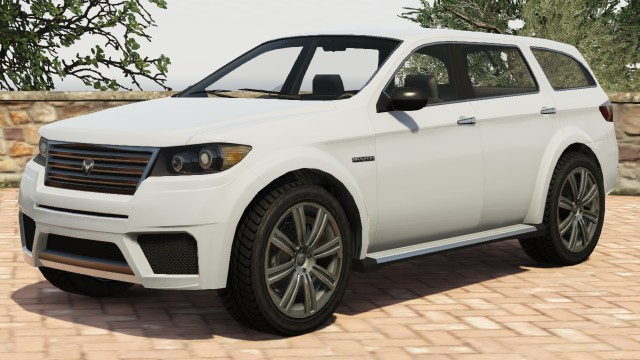
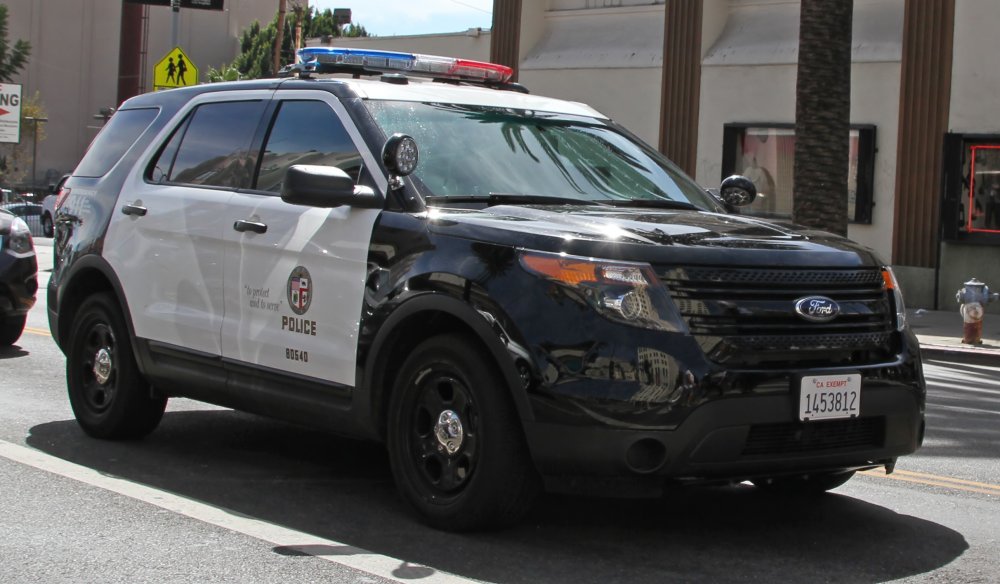
After some reconsideration, I do see the parallel between the Ford Explorer and the Bravado Gresley. I guess I'm just a bit "fanboy"-ish of the Vapid Radius. I guess my problem is that the Gresley is Bravado (Dodge) while the Radius is a Vapid (Ford), which would make more sense in my mind to their real-life equivalents.
-
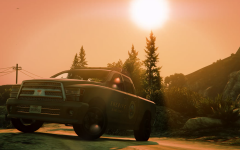 I usually don't like police trucks, but I'll make an exception for this beauty :3
 -
Oh the Merit, that's a good one. I find it odd that Rockstar didn't port the Merit over from IV to V, yet they ported the first generation Stanier...
-
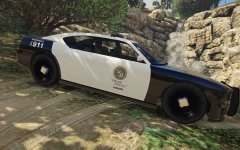 Based on the fancier variant of the LS city seal, made to look more like the LA city seal used on LAPD cruisers.
 -
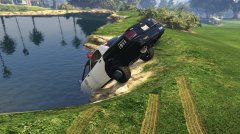 A sneak-peak at the LSPD's new submarine program
 -
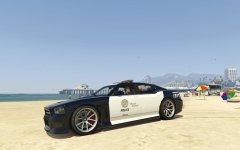 OMG Lund :3 I love lore, especially the GTA lore; and I hate to deviate from it. I like to work with what Rockstar has given us. (ex: I don't use real-life cars) And yes those wheels look awful. #Hubcapgate
 -
I see where you're coming from with the Ford Edge, but I don't see the Bravado Gresley being closer. The problems with working with fictional vehicles, I guess.
-
I would like to see the Vapid Radius become a police vehicle. (Vapid Radius is basically a Ford Explorer)
-
Of course :3
-
Of course. The more the merrier :3
-
I'll put on some final touches and then I'll send you a link, soonish :3
-
I wish that Rockstar had just kept the beta/trailer design (and made it smaller) over the current. The Stanier doesn't say 'police' anywhere on the vehicle, which just looks stupid; the Buffalo has a 'police' marking on the hood, and the interceptor, ohohoho. If there's a demand I'll upload, if not I'll share with you :3
-
Based off of the design used on real-life LAPD chargers, while keeping with the style of the LSPD.
-
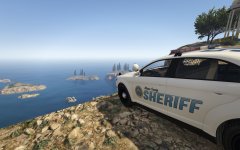 Takes after the Kern County Sheriff livery, albeit blue. [Prototype;Not Final] Uses Police3 as Base & Replaces Asea2 Things to do: Spawn with correct colouringUse correct soundsMake siren/ELS workIf any of you fine people know how to do any of the above you'll have my eternal love. Maybe.
 -
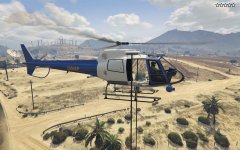 A model I made quickly. Uses the Police Maverick as its base; the livery was changed to resemble a simplistic take on a CHP helicopter
 -
Yes I remember the 'Toggle Lethal Force' option. But that was set on a case by case basis. My thinking was that in the config there would be the option to set how you wish the AI would handle criminal scum. Nonetheless thanks Steele1925.
-
With LSPDFR would it be possible to have the option to chose between default GTA V Cop logic (where they execute criminals regardless of circumstances) and Realistic Cop logic (arresting people). Personally I'd like to live by the LSPD's "Obey & Survive". Just curious; thanks in advance.



