Puwolskyy
Members
-
Joined
-
Last visited
Everything posted by Puwolskyy
-
 that crow vic has relased?
 -
If you can put a new arjent?
-
Desmond You can update the arjent lights to a new version?
-
-
-
.thumb.jpg.a4a34b706ab065eb1cdc7c8e75034ea3.jpg) I like to separate the two vehicles I would like to put the vehicle in the slot police bands 4 and argent at 1
I like to separate the two vehicles I would like to put the vehicle in the slot police bands 4 and argent at 1- 30 comments
- 28 reviews
-
 ENB??
ENB?? -
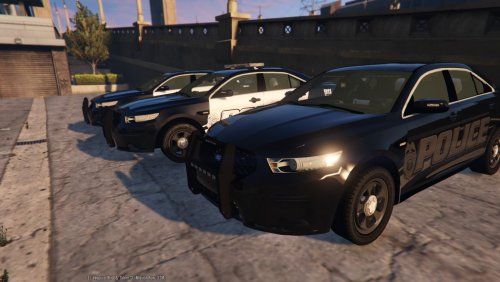
 Name of enb please looks great!
 -
 Please name of ENB??
 -
-
Hello everyone I wonder if I can have 2 versions of GTA 5 because if I change the original game I can not play online with my friends and I have to fix the game, you can have 2 versions? one for LSPDFR and other online? as is done ?, greetings!
-
 wow nice!! dowload link??
 -
.png.160c99fdb07bb46e9ab51ef8b8ddf558.png) you can use enb?
you can use enb? -
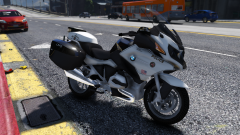
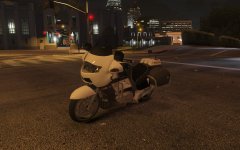 the bike has been released want the link?
 -
-
From the album: BMW
-
-
-
-
-
Thank @Carperino the best CVPI
-

From the album: CVPI-Carperino
-

From the album: CVPI-Carperino
@Carperino -
 RELEASE CROWN VIC PLEASE!!
 -
 thanks!!!

.thumb.jpg.bfad1c193dd40b9d539eefd7c5187a5a.jpg)
.thumb.jpg.a4a34b706ab065eb1cdc7c8e75034ea3.jpg)

.png.160c99fdb07bb46e9ab51ef8b8ddf558.png)