GeorgieMoon
Members
-
Joined
-
Last visited
Everything posted by GeorgieMoon
-
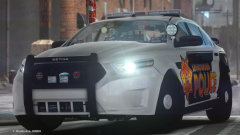 This guy ^^^
 -
 Nice man realy nice!!!
 -
-
-
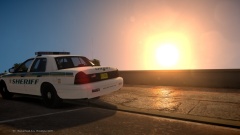 Nice!
Nice! -
![Whelen SA315 Speaker/Siren [FINAL]](//s3-gallery.int-cdn.lcpdfrusercontent.com/gallery/album_3389/sml_gallery_148203_3389_643138.png) Looks great the only thing i notice is that the normals look a bit "bulky". Try using the smooth tool.
Looks great the only thing i notice is that the normals look a bit "bulky". Try using the smooth tool. -
![[WIP] MCSO Pack](//s3-gallery.int-cdn.lcpdfrusercontent.com/gallery/album_2838/sml_gallery_120090_2838_2013169.png) I think I sent you the wrong version because the wheels look a little pushed on, oops [:
I think I sent you the wrong version because the wheels look a little pushed on, oops [: -
#realism
-
![[WIP] MCSO Pack](//s3-gallery.int-cdn.lcpdfrusercontent.com/gallery/album_2838/sml_gallery_120090_2838_2139160.png) <3
<3 -
No its a problem with exporting its happened to me multiple time with/without enb.
-
Something went wrong with the headlight glass /:
-
![[WIP] Madera County Sheriff's pack](//s3-gallery.int-cdn.lcpdfrusercontent.com/gallery/album_2838/sml_gallery_120090_2838_2726414.png) I can hook you up with a new charger and Cvpi model if you are interested.
I can hook you up with a new charger and Cvpi model if you are interested. -
![Vapid Radius [WIP]](//s3-gallery.int-cdn.lcpdfrusercontent.com/gallery/album_3065/sml_gallery_86082_3065_30620.png) Nice work, I can do a colored template If you want.
Nice work, I can do a colored template If you want. -
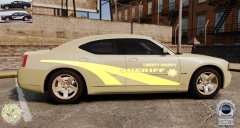 The radar in the corner is also off lolzz
 -
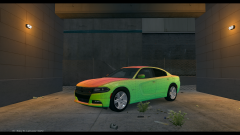 Looks great, what is the file size?
 -
![[WIP] 2014 Ford F-450 Super Duty Chassis](//s3-gallery.int-cdn.lcpdfrusercontent.com/gallery/album_2692/sml_gallery_138650_2692_187836.png) cute
cute -
-
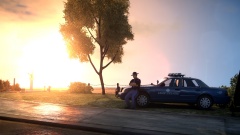 Bruh.
Bruh. -
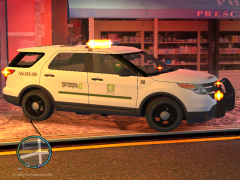 Are you talking to yourself? LOL
 -
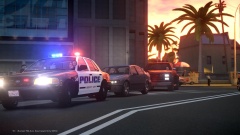 Love the skin!
 -
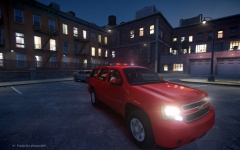 Nice work!
 -
-
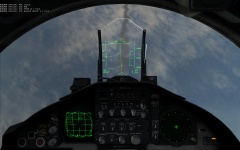 Thanks for like 30 pictures of the same thing!!
 -
Thanks I'll definitely check it out.
-
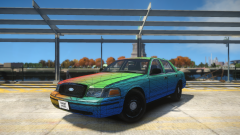 Nice!
Nice!
![Whelen SA315 Speaker/Siren [FINAL]](http://s3-gallery.int-cdn.lcpdfrusercontent.com/gallery/album_3389/sml_gallery_148203_3389_643138.png)
![[WIP] MCSO Pack](http://s3-gallery.int-cdn.lcpdfrusercontent.com/gallery/album_2838/sml_gallery_120090_2838_2013169.png)
![[WIP] MCSO Pack](http://s3-gallery.int-cdn.lcpdfrusercontent.com/gallery/album_2838/sml_gallery_120090_2838_2139160.png)
![[WIP] Madera County Sheriff's pack](http://s3-gallery.int-cdn.lcpdfrusercontent.com/gallery/album_2838/sml_gallery_120090_2838_2726414.png)
![Vapid Radius [WIP]](http://s3-gallery.int-cdn.lcpdfrusercontent.com/gallery/album_3065/sml_gallery_86082_3065_30620.png)
![[WIP] 2014 Ford F-450 Super Duty Chassis](http://s3-gallery.int-cdn.lcpdfrusercontent.com/gallery/album_2692/sml_gallery_138650_2692_187836.png)