


GeorgieMoon
Members
-
Joined
-
Last visited
Everything posted by GeorgieMoon
-
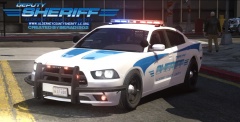 I believe its by Jokermods and Its for download on "that site" we cant mention.
 -
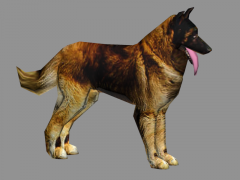 This is gr8 wats its name?
 -
This is correct and If you don't have LOD's the parts with out them will be either a bright light or It will be invisible from a certain distance
-
Well some of those things I mentioned play a major role in game, and I suggest you change them before you release (its as simple as changing a name come on) And I know for a fact those things can crash the game. I have experience in this kind of work and I know what I'm doing.
-
The reason why the rear windscreen crashes your game is because it doesn't have a proper dummy, here is a picture of what the hierarchy should look like Another thing I noticed is that the name charger.wft should be changed to whatever you are exporting as ex. (police.wft, police2.wft) Also all of the extra's for els should be made up of L0's and L1's as seen here: And the reason that they may not be flashing/showing through the windscreen/headlight glass is either it is not at the top of the hierarchy (under chassis_L1) Or its something to do with materials. Can I see a picture of your materials? I'm hoping this helped and was easy to understand. Forgot to quote
-
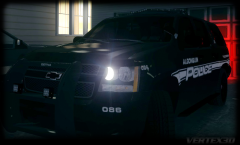 Hmm wonder who's tahoe>;) Looking good.
 -
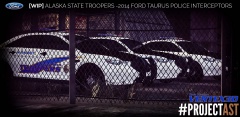 They do use the Whelen Liberty.. http://www.policecarwebsite.net/fc/statepdcars/ast.html

