


EFox
Members
-
Joined
-
Last visited
Everything posted by EFox
-
http://lmgtfy.com/?q=books+on+the+metric+system Google is a search engine. LCPDFR is not a search engine... The more you know.
-
 I could not want more.
 -
Just a friendly suggestion, if you included the original model in the download, you might want to credit them as well. Besides that, it doesn't look too bad.
- 6 comments
- 1 review
-
 Yes... '?do=embed' frameborder='0' data-embedContent>>
 -
 Mother of god!
 -
-
I'm all in favor for them barreling into the suspects car with a BearCat, that outta' do the trick.
-
 That thing is gorgeous! And I like your new avatar as well :)
 -
-
 I love the Gator!
 -
 Is that a winglux on there?
 -
 So smexy.
 -
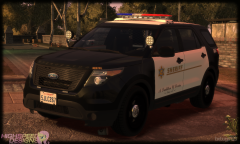 You're argument would almost be valid if this wasn't a 2015. As it is a 2015 model year, the grill is correct, as depicted here. '>
 -
@medmark, I was just about to say that. As far as that goes, it is a difficult request as there are not many people that have an international cab, only one person that I know of.
-
 The old one was broken by a curious bear. :P
 -
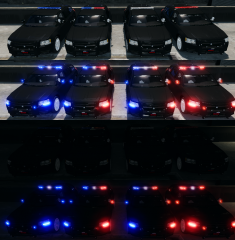 Very nice! I'd say do it.
 -
 Absolutely beautiful sir! Glad to see you're still modding.
 -
 Liberty+Justice=Listice
 -
 Looks awesome!
 -
Well without much info to go off of, that was the best I could do.
-
A really quick google search brought me this...you should try it sometime. '>
-
 Looks amazing! Any plans on release?
 -
 Those are some beautiful Tahoes!
 -
![[WIP] FAGGIO INTERCEPTOR](//s3-gallery.int-cdn.lcpdfrusercontent.com/gallery/album_2498/sml_gallery_4103_2498_1345775.png) I like the Halo Belts on those tires!
I like the Halo Belts on those tires! -
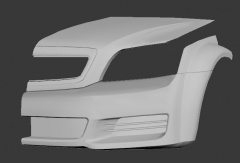 We must plaster it all over the internet!!



![[WIP] FAGGIO INTERCEPTOR](http://s3-gallery.int-cdn.lcpdfrusercontent.com/gallery/album_2498/sml_gallery_4103_2498_1345775.png)
