



Lop
Members
-
Joined
-
Last visited
Everything posted by Lop
-
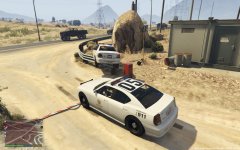
From the album: Daquans GTAV Album
Don't remember being taught that in the Academy. -
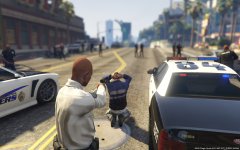
From the album: Daquans GTAV Album
Glad to see that I have backup when I need it. Even when I didn't actually need it. -
.thumb.jpg.68025adb638b4db6e80dd46dfb0cd355.jpg) Excellent rendition of the CCSO fleet. Having been pulled over by CCSO in the past and asked to check out the charger the officer had, this is almost identical to it. Excellent work, keep it up!
Excellent rendition of the CCSO fleet. Having been pulled over by CCSO in the past and asked to check out the charger the officer had, this is almost identical to it. Excellent work, keep it up!- 5 comments
- 1 review
-
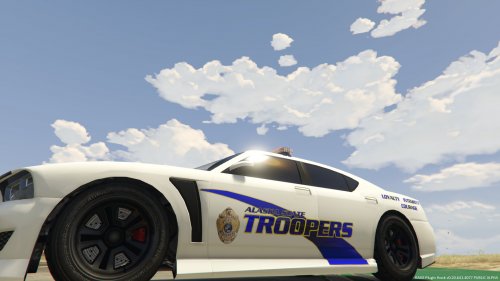 This is awesome! I was actually watching Alaska State Troopers on TV yesterday thinking about a skin for the Granger or something. Excellent work!
- 1 comment
- 2 reviews
-
 What an amazing thing to wake up to. Excellent addition to LSPDFR, definitely brings back some memories with LCPDFR and the roleplaying I used to do on there. Great job and keep it up.
- 113 comments
- 27 reviews
-
Once I get more money, I will be buying a shirt and a mug. Love supporting great websites and communities.
-
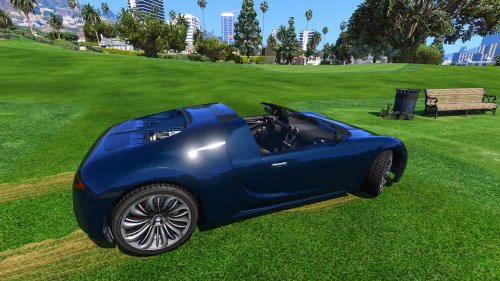 It's definitely a great starting point. The roof isn't even removed all the way, although you did remove a great portion of it. Keep up the good work and keep on trying.
- 9 comments
- 11 reviews
-
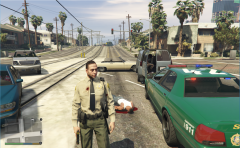 Using the green LSSD skin by DrDanthrax99. Excellent work buddy.
 -
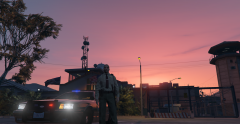 Using the green LSSD skin by DrDanthrax99. Excellent work buddy.
 -
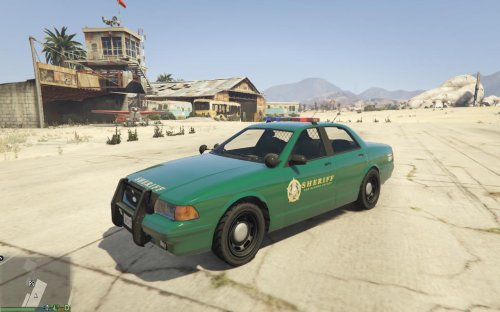 It looks like the MCSO(Multnomah County Sheriffs Office) cars here in Oregon. Amazing work, thank you. EDIT: I took a couple of pictures using the skin. Love it and will be using the LSSD officers way more often than I used to.
- 5 comments
- 3 reviews
-
-

- 1
-
-
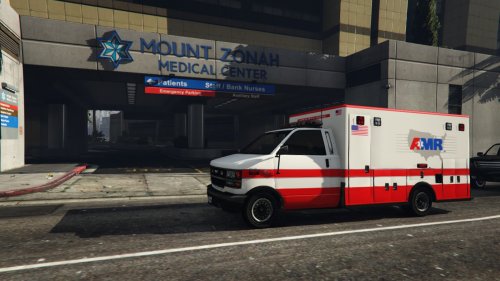 This skin looks absolutely amazing. No complaints only that you should make more of them.
 -
-
 The Coroner punched me in the face so I had to arrest him. Looks like the department won't be using that company again.
 -
-
It started randomly working. Thanks Couth!
-
Still does nothing. I've checked all the keybinds for the plugins I have, LCPDFR, and GTA V/Steam and mapped them accordingly and nothing works. Could it be that Steam cannot detect my keystrokes or something? I can open the overlay just fine but cannot take screenshots. My keyboard is the Logitech G710+
-
I am currently not able to take screenshots while in-game using Steam. Steam Overlay is on, F12 is the keybind for it and nothing else is bound to it. I've tried other games and screenshots work. Does it have something to do with LSPDFR, a fault from Steams side, or something I have done?
-
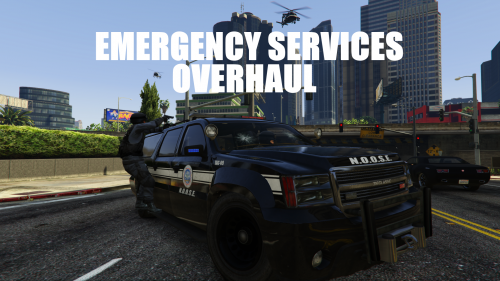 This mod is a fantastic edition to not only LSPD:FR but the single player as well. Whether you want to play as a cop or you want to run away from them, this mod gives you an assortment of new challenges as law enforcement in San Andreas beefs up their departments.
- 42 comments
- 10 reviews
-
-
- 4
-
-
I am having an issue loading up the console while in game. RAGE is working 100% as I am able to play LSPDFR but I am not able to load up the console. Is this a problem with plugins colliding or is it RAGE itself?
-
-
Thank you guys for the answers. I am getting a solid 45fps and I couldn't ask for anything better. Thanks for the help everyone!
-
Thank you for the quick answer! Yeah, I liked the black and white design to it so I had to have it! Sadly the all white Sabertooth was way out of my budget haha. At what FPS should I expect to run GTAV? ineseri, I ordered the parts over the weekend. Not really JUST ordering it but still. I just want a basic idea of how well this set up will perform.
-
I just ordered PC Parts and they should be here tomorrow. I was wondering how well I will be able to run GTAV. The Specs are: Thank you, Yak

.thumb.jpg.68025adb638b4db6e80dd46dfb0cd355.jpg)


