
LilQ
Members
-
Joined
Everything posted by LilQ
-
-
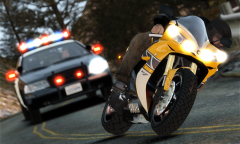
From the album: GTA IV screenshots
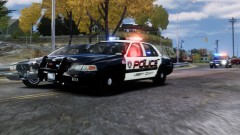
...another one from the scene with a CHP units -
-
-
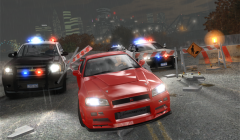 I'm not sure what do you mean by that. I install all of the cars manually. On this picture there is Cj24's police pack and a Nissan Skyline from a russian gtamania website.
 -
Ofc that's with ENB.
-
http://www.imagebam.com/image/317e5f228123798 http://www.imagebam.com/image/7c3894228123810
-
From the album: GTA IV screenshots
-
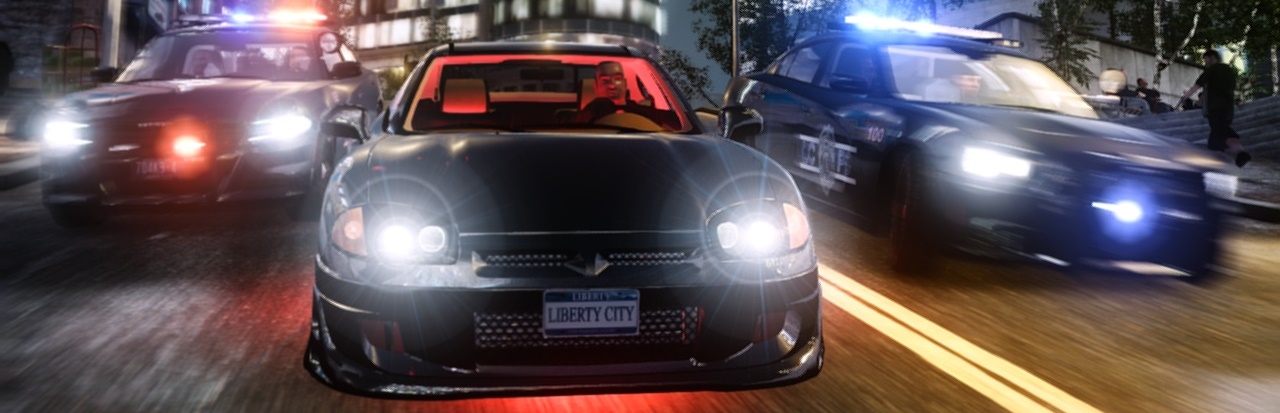
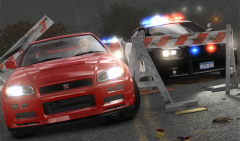 AA is enabled. Kind of a problem for me to do in-game action pics with motion blur with these setting and AA enabled. Very memory hungry settings. So that's why this is from a video-editor. Glad you like it.
 -
From the album: GTA IV screenshots
-
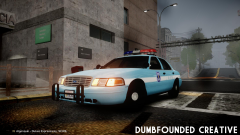 Can't wait ! Will there be a non-els version of this crown vic ?
 -
-
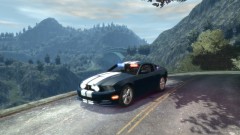 That looks nice ! Are you planning to make a marked version as well ?
 -
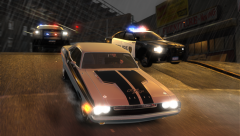
From the album: GTA IV screenshots
Thanks for the police pack Cj24 ! -
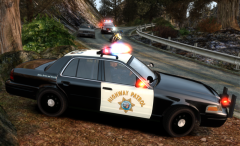 Make sure that you replaced paths in pcdatacdimages with the one from 02_EXTRAS.
 -
Yes, it does. ;)
-
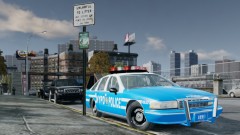 http://www.gta4-mods.com/misc/mild-enb-final-released-all-patch-f13111 ^ these are the settings as far as I remember. I got a gtx260.
 -
From the album: GTA IV screenshots
Now that one is going to be a problem... We need air support on this one ! kind of a bonus http://www.imagebam.com/image/353e0d227731098 -
Whoa, can't wait for Caprice to be released, looks awesome !
-
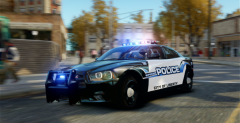 ^ schakusa v2.1
 -
 these : http://www.gta4-mods.com/misc/bone-enb-settings-v10-f7323 , I believe
 -
-
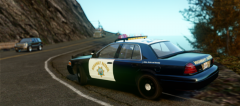 http://www.gta4-mods.com/misc/ghost-peak-mountain-f13525
 -
From the album: GTA IV screenshots
- -