
bonehead
Members
-
Joined
-
Last visited
Everything posted by bonehead
-
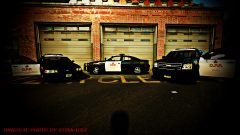
From the album: Ontario Police Vehicles(CAN)
Models by Chippy Skins by Bonehead LEAVE FEEDBACK -
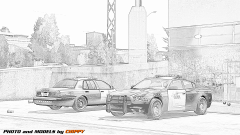
From the album: Ontario Police Vehicles(CAN)
Skins by Bonehead Screenshot edited by Bonehead -
 Awesome pic man!!!
 -
I do not know what to tell ya then
-
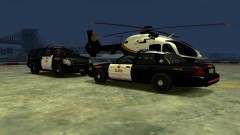
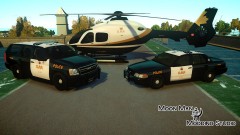
From the album: Ontario Police Vehicles(CAN)
Skins all made by Bonehead Eurocopter EC135 made by Special Jaeger at gamemodding.com (i think) Tahoe by Chippy CVPI by Chippy -
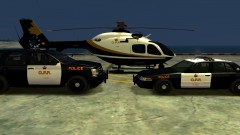
From the album: Ontario Police Vehicles(CAN)
Skins all made by Bonehead Eurocopter EC135 made by Special Jaeger at gamemodding.com (i think) Tahoe by Chippy CVPI by Chippy -
Mapping i couldn't tell ya :P but if you find a car that is mapped i could try to mess around with the ELS settings
-
you can do it with ELS-7 you just need a car with headlights and tail lights mapped then you need to mess with the environment lighting settings for that specific light (IE: primary, secondary, or warning)
-
I think i was asking if it was low poly... but i don't remember :p
-
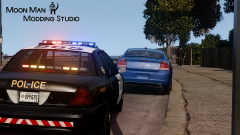 so nice
 -
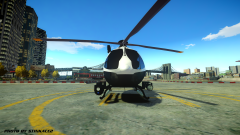
From the album: Ontario Police Vehicles(CAN)
skined by bonehead -
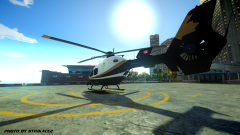
From the album: Ontario Police Vehicles(CAN)
skined by bonehead -
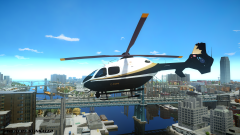
From the album: Ontario Police Vehicles(CAN)
skin by bonehead -
-
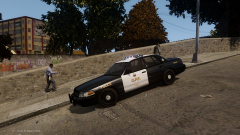
From the album: Ontario Police Vehicles(CAN)
Very nice model by chippy Very nice pushbar aswell -
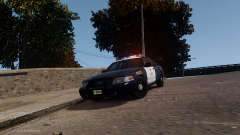
From the album: Ontario Police Vehicles(CAN)
Very nice model by chippy Very nice pushbar aswell -
-
-
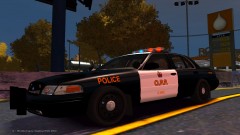 No you see the Patterson machine works push bar is beautiful.... this (made by anzairsoft) is not a Patterson machine works pushbar it's a steel 2x4 bolted on a car..... This '> (made by chippy) is a real patterson machine works pushbar and looks amazing, unlike the ugly piece of crap on the CVPI
 -
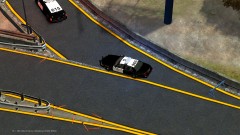
From the album: Ontario Police Vehicles(CAN)
Tahoe by chippy CVPI by anzairsoft -
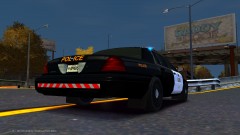
From the album: Ontario Police Vehicles(CAN)
Model by anzairsoft (i think that's how it's spelt) Skin by bonehead -
From the album: Ontario Police Vehicles(CAN)
Model by anzairsoft (i think that's how it's spelt) (dat ugly rambar :S) -
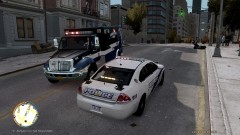 :D dat skin :')
 -
either way i was just curious as to whether or not there was a difference between the higher values other then blur..... Model looks good man (and now you know how to change it if you want to ;P)
-
they can be edited in the (carname).wtd file just click on the skin select properties and there you have it :P (openiv)