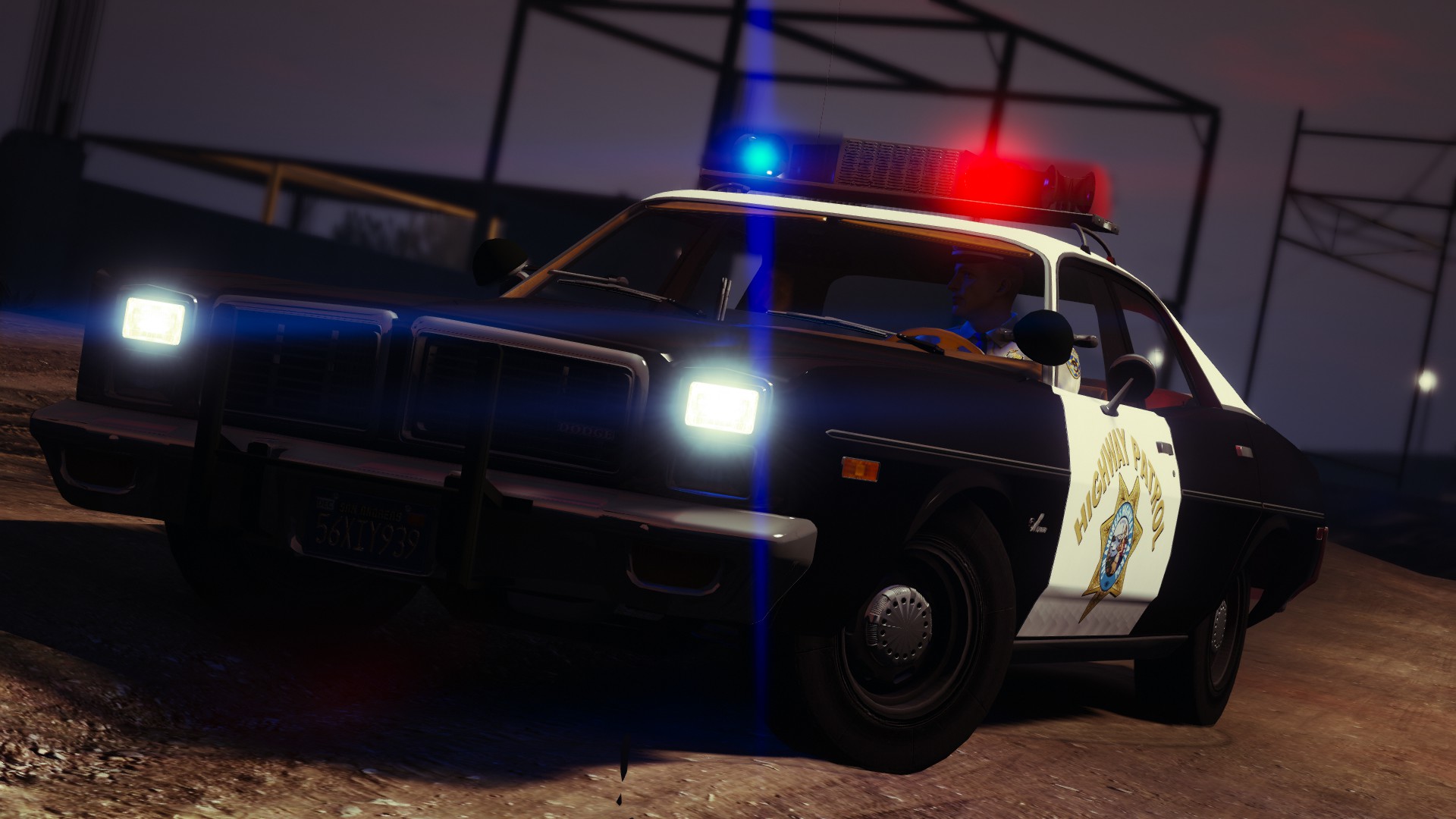
Thanks for visiting my profile. My name is Mikofiticus, or you can call me Mike. I make cinematic screenshots, gameplay videos and also the occasional skin. I play a ton of LCPDFR/LSPDFR (duh) and I love other games such as Battlefield, Star Wars Battlefront, Red Orchestra and a few others. I post screenshots often, and also post videos on my YouTube every Tuesday and Thursday (unless something comes up).
If you guys have noticed on the forums, I love all things classic car related. My mum and myself are restoring a 1962 Ford Falcon at the moment. Hope to keep it in the family for a long time. The next project will be a vintage patrol car hopefully.
Anyway, you can reach me on these platforms
Facebook - https://www.facebook.com/Mikofiticus/
YouTube - https://www.youtube.com/user/Ringo4493/videos
Twitter - https://twitter.com/Mikofiticus
Twitch - https://www.twitch.tv/mikofiticus
Steam - Mikofiticus
Origin - Admira1Snackbarr
PSN - Mikofiticus