Creators: Due to background reprocessing of files, approvals and file security checks may be delayed. Thanks for your patience.


CrossFire
Members
-
Joined
-
Last visited
Everything posted by CrossFire
-
 Well, I have a new Desktop background
 -
Well then why would you post a link to a pack that doesn't have what the OP requested?
-
Theirs not even a Explorer in the pack...
-
 Awesome ENB!!
 -
-
He means callouts on the highway, like crashes, stalled vehicle, etc.
-
What?
-
Weapon malfunctions can happen at any time, even if you take care of it, you may be trained for it, but you cannot stop it.
-
 LOL Thanks! #RadioFriday will happen!!!!
 -
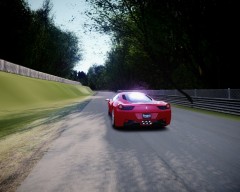
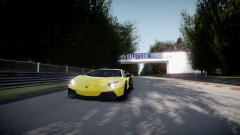
Me racing on the racing track Nordschleife in Nürburg, Germany. Using The Extended (255 MB+15 MB) Car Pack
-
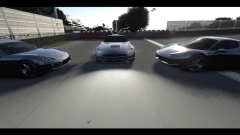
From the album: Nürburgring
Decided to put Nürburgring back in! -
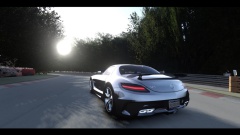
From the album: Nürburgring
Decided to put Nürburgring back in! -
From the album: Nürburgring
Decided to put Nürburgring back in! -
-
1. No muzzle flash on the "Cops" weapon. 2. I don't care what country you are from, if you are a cop, you don't squat when holding a weapon. 3. I assure you that gun is not a standard issue weapon in any country. Ever. 4. With the kick of that gun, if he did get shot with it, he would've fell back, not to his side.
-
I do believe they are. Why?
-
Quite Possibly coming to a downloads near you!
-
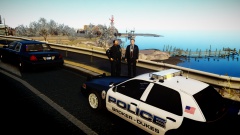
From the album: ENB Series by Grant V5
Quite possible coming to a download section near you!! -
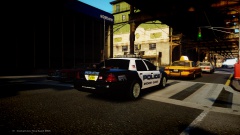
From the album: ENB Series by Grant V5
Quite possible coming to a download section near you!! -
#PMed
-
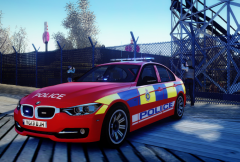 Your welcome for the screenshot :P
 -
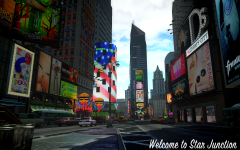 Theirs a wreck in the second extra pic lol
 -
-
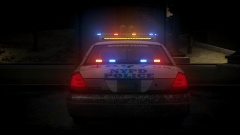
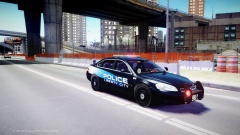 LCPD Impala
-
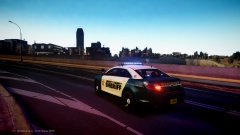 BETA 2
-
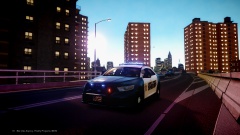 BETA 2
-
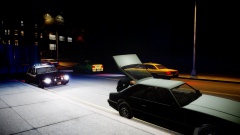 Searching the trunk
-
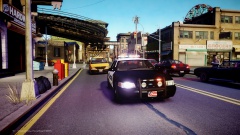 Code 3 to Felony Stop
-
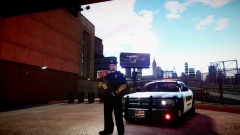 New ENB
-
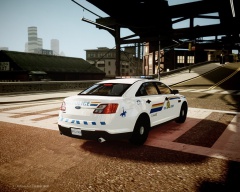 RCMP Code 3
-
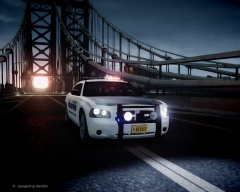 Alaska State Troopers!
-
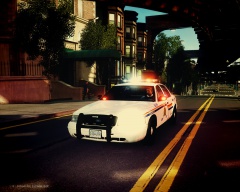 RCMP Code 3
-
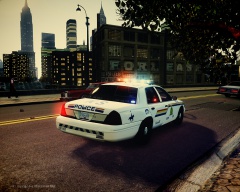 RCMP Code 3
-
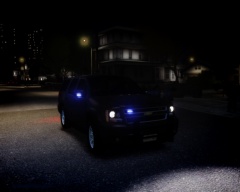 LCPD SRU Responding Code 3 to Shots fired
-
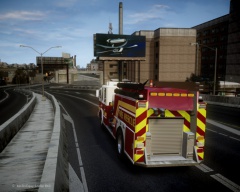 LCFR Responding
-
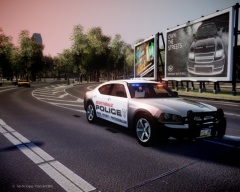 Charger responding Code 3
-
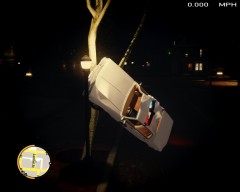 What? I don't even?????
-
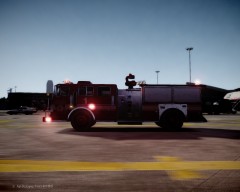 FDLC
FDLC
-
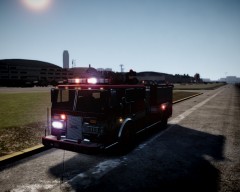 FDLC
FDLC
-
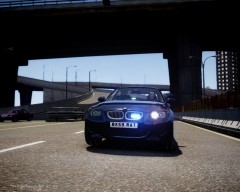 You'll never see it coming...
-
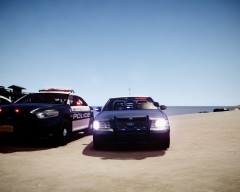 LCPD Goes modern: 2011 Crown Victoria
-
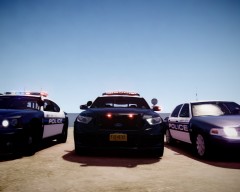 LCPD Goes Modern: 2013 Taurus
-
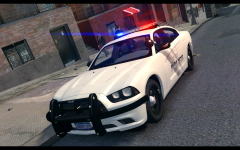
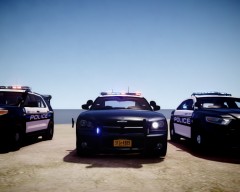 LCPD Goes Modern: 2010 Charger
-
-
From the album: Grant on patrol
Skin by Michael V. (Still a WIP) ENB By Grant M. and various others (Still a WIP) -
From the album: Grant on patrol
ENB Series by Grant V5 BETA 2