Tom S.
Members
-
Joined
-
Last visited
Everything posted by Tom S.
-
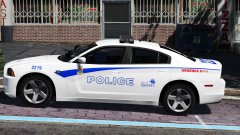 My most recent texture for the Dodge Charger 2014 model.
 -
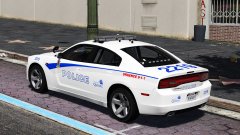 My most recent texture for the Dodge Charger 2014 model.
 -
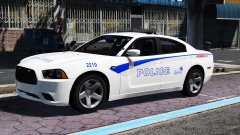 My most recent texture for the Dodge Charger 2014 model.
 -
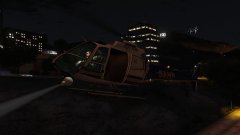 Assisting SAHP and LSPD units involved in a pursuit.
 -
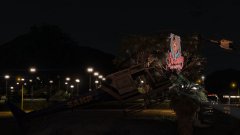 LSPD and SAHP involved in a pursuit.
 -
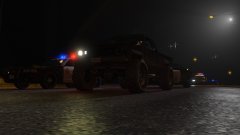 LSPD and SAHP involved in a pursuit.
 -
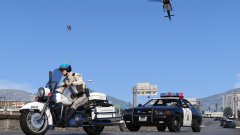 That's the one thing I keep forgetting to do when taking screenshots lol.
 -
-
-
 Just an idea, seen as in 0.3 the AI cops still ram you out of the way, is it possible to use the "suspect follow you" feature from the traffic stops to allow cops to automatically follow you instead whenever you're in a pursuit? I'm not sure how difficult this would be to implement but if so it would be a miracle. Loving traffic policer!
- 3,646 comments
- 306 reviews
-
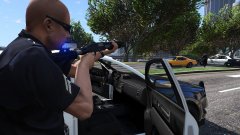
From the album: Lock n load #1
LSPD Pursuing felony evasion and drug trafficking suspect. -
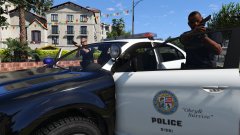
From the album: Lock n load #1
LSPD Pursuing felony evasion and drug trafficking suspect. -
The amount of work and dedication you guys put into this is amazing and I can't wait to finally play 0.3. Have you by any chance added the ability to disable call outs in-game like you could in LCPDFR with the press of a hotkey and to turn them back on again?
-
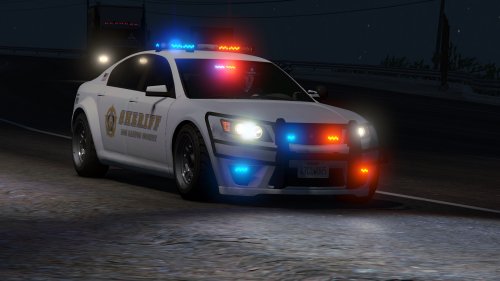
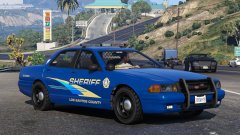 (WIP) Coming soon to LSPDFR: LSSD texture package based of Alameda County sheriff.
 -
This looks epic. I'm definitely excited for this update.
-
-
-
-
-
-
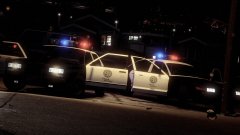 These look phenomenal. I hope you release these either separately or as part of an 80's classic pack, maybe with templates if possible.
 -
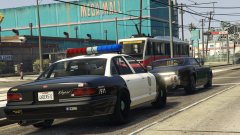 This looks incredible.
 -
-
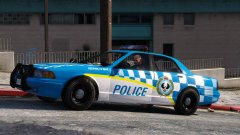 South Australia police. It's one of their new liveries that they recently started using. You can find some photos of it on flickr.
 -
Yay or nay? Testing some Australian liveries for the Vapid Cruiser.