
SeabrookGaming
Members
-
Joined
-
Last visited
Everything posted by SeabrookGaming
-
-
-
-
Great news.
-
-
-
-
-
-
-
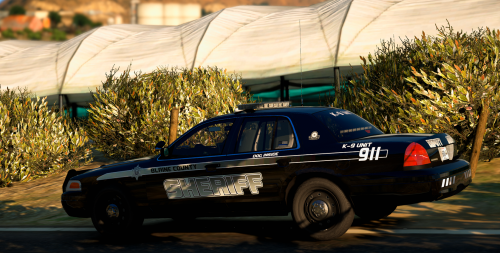 You outdid yourself with this one. You put alot of effort into this and your work shows it, great work!! I just spent fifteen minutes trying to find my password just to write this!! lol
- 25 comments
- 9 reviews
-
-

- 1
-
-
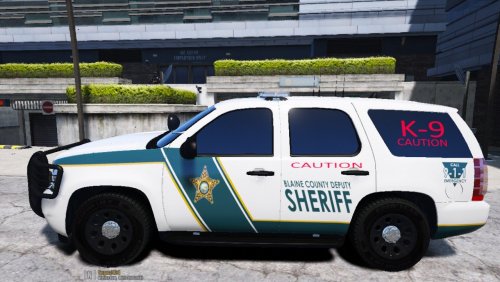 Beauty
 -
-
 lolol this is great
 -
-
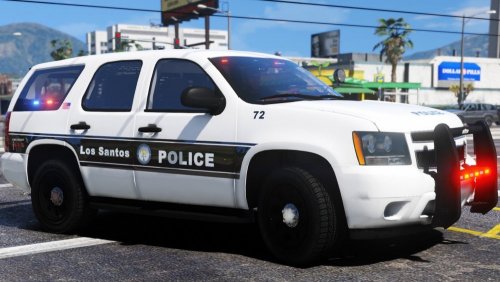 Great effort put into this. Kinda reminds me of NCHP but for the City! Great job man.
- 39 comments
- 12 reviews
-
-
- 1
-
-
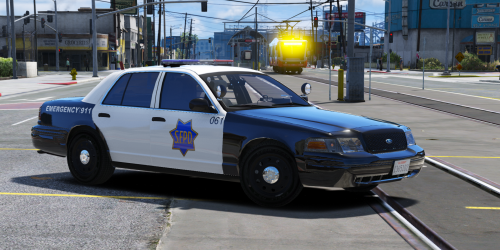 Great work... time and effort was put into this and we can see that. Thank you!
- 15 comments
- 8 reviews
-
-
- 1
-
-
 Please.... please release..... D; I live in Charlotte and I'm so in love D:
 -
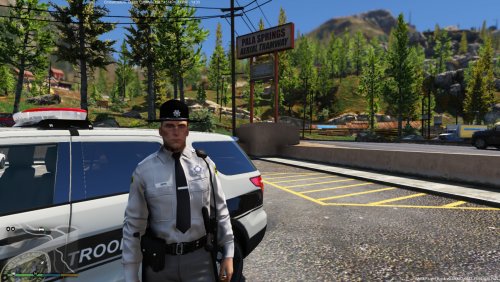
 Please keep us updated!!! Love SCHP... Have alot of real life memorabilia from them. We've got your back in NC!
 -
-
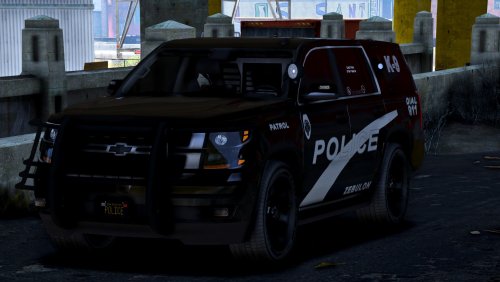
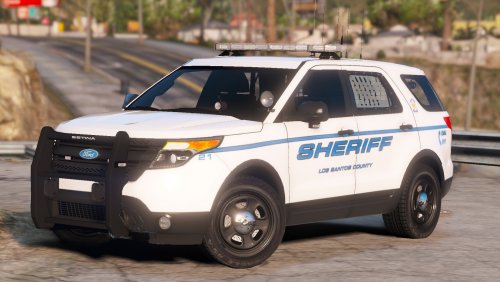 I like it. You should definitely make a black out version of these. Or maybe black and white? :D
- 6 comments
- 2 reviews
-
-
 BEAUTIFUL... WAITING RELEASE.
 -
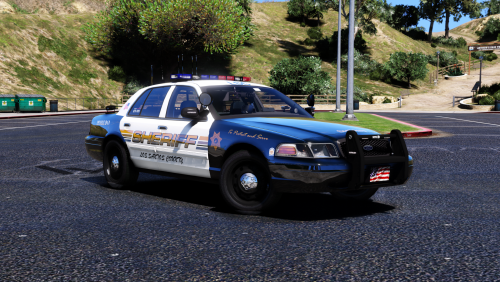
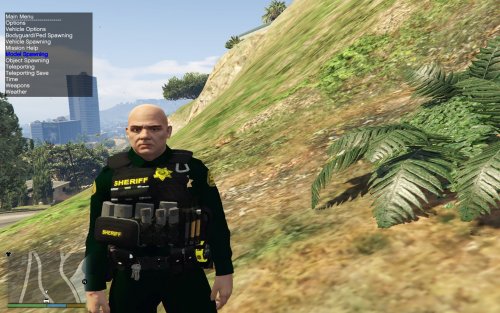
 Release that sheriff's skin D; It's so beautiful!
 -
 vics making my heart melt. caprice are fast af tho.