


PinkHusky
Members
-
Joined
-
Last visited
Everything posted by PinkHusky
-
![SPVM (Montreal Police) Impala w/ Traffic Directional Board [up]](//s3-gallery.int-cdn.lcpdfrusercontent.com/gallery/album_226/sml_gallery_5382_226_91508.jpg) Will it come with a SPVM officer who breaks windows of businesses and blame it on protesters? Great skin BTW.
Will it come with a SPVM officer who breaks windows of businesses and blame it on protesters? Great skin BTW. -
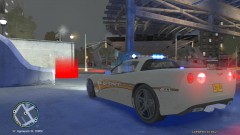
From the album: Exakt
Conversion of the excellent Alderney County Sheriff's CVPI texture by gfxle. Used Cj24 template at Accurate Studios. -
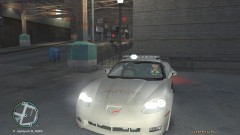
From the album: Exakt
Conversion of the excellent Alderney County Sheriff's CVPI texture by gfxle. Used Cj24 template at Accurate Studios. -
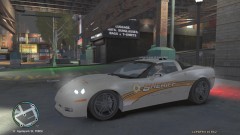
From the album: Exakt
Conversion of the excellent Alderney County Sheriff's CVPI texture by gfxle. Used Cj24 template at Accurate Studios. -
Did you installed SparkIV inside the GTA IV folder? I hope not. That may be why GTA IV has now stopped responding. Now I would say uninstall and reinstall GTA IV, update it to 1.0.7, download SparkIV v0.6.9(beta) or later, install it within its own folder, do not create that folder inside the GTA one.
-
SparkIV works fine on Windows 7, as seen in the vid, just make sure you have at least v0.6.9 of SparkIV.
-
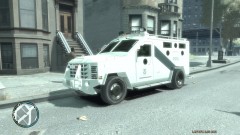 I almost got it right from the get go, just took some minor tweaks to avoids the gunports overlapping some stuff... Glad you like it.
 -
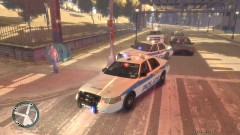
From the album: Exakt
-
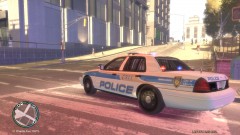
From the album: Exakt
Notice the Broker & Dukes on the side. -
-
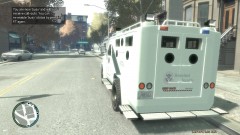
From the album: Exakt
-
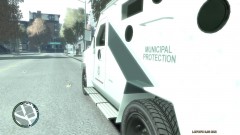
From the album: Exakt
-
From the album: Exakt
-
Actually, Sierra didn't go out of business, they got bought by Vivendi Universal, and since they acquired Activision, all of Vivendi Games got brought into Activision-Blizzard. Yes the name Sierra is no longer used, but the IP and Copyrights owners are now Activision-Blizzard/Vivendi Universal.
- 23 comments
- 14 reviews
-
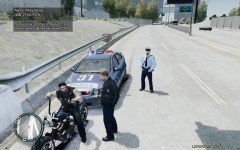 Been a while last I've seen a Holden.
 -
I will add a screenshot of the page next week, since the next release should be out then.
-
Challenge accepted as soon as I get home.
-
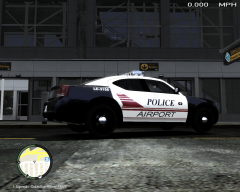 Nice one.
 -
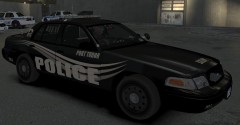
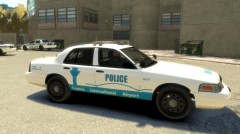 ALM 1.1 does have FIA and Port Tudor as 2 new areas.
 -
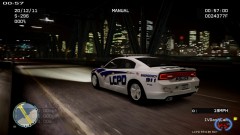 If I am not mistaken, it is the new CHP livery on the Charger 2012 Beta.
 -
From the album: Exakt
Here is the one I whipped up in about 30 mins tonight. -
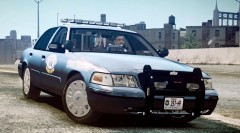 Most of the time, it is to prevent the theft of the rim cover and of the tire itself. Police cars have a locked hub cap on the wheel, negating the access to the bolts.
 -
 http://docs.gimp.org/en/gimp-using-paths.html This might help you, it is the start of using paths for a lot of stuff, such as curved lines.
 -
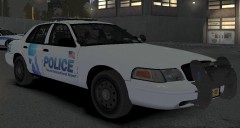 Like I said, this one ain't my work, but will surely have a go for a new FIA unit tonight.
 -
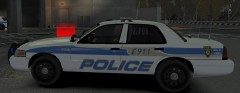
From the album: Exakt
Here is the one I use for the rest of LC. My work based off the Saint-Eustache police department.

![SPVM (Montreal Police) Impala w/ Traffic Directional Board [up]](http://s3-gallery.int-cdn.lcpdfrusercontent.com/gallery/album_226/sml_gallery_5382_226_91508.jpg)


