



Scorpionarius
Members
-
Joined
-
Last visited
Everything posted by Scorpionarius
-
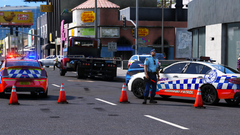
Quiet night for the Blaine County Sheriffs Office
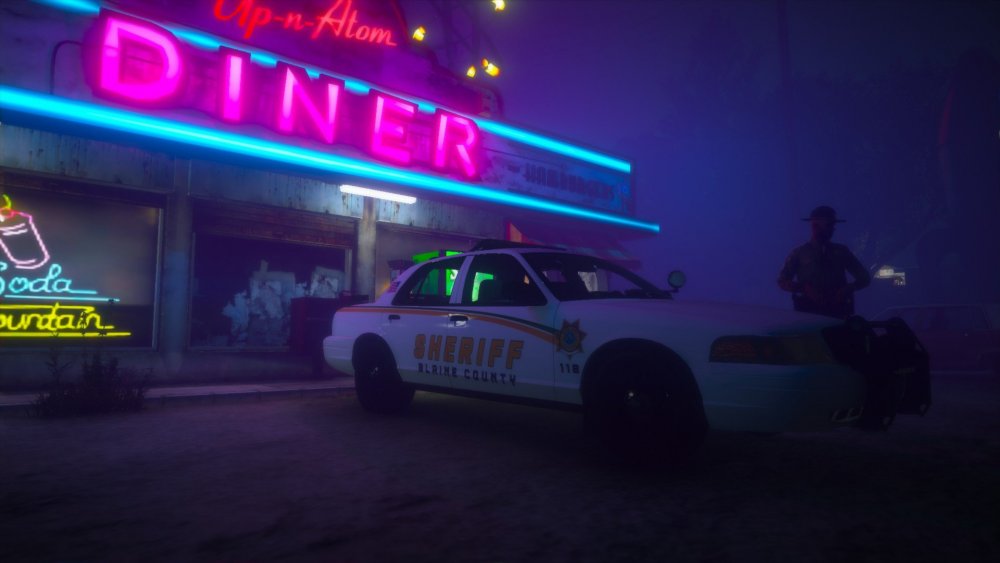
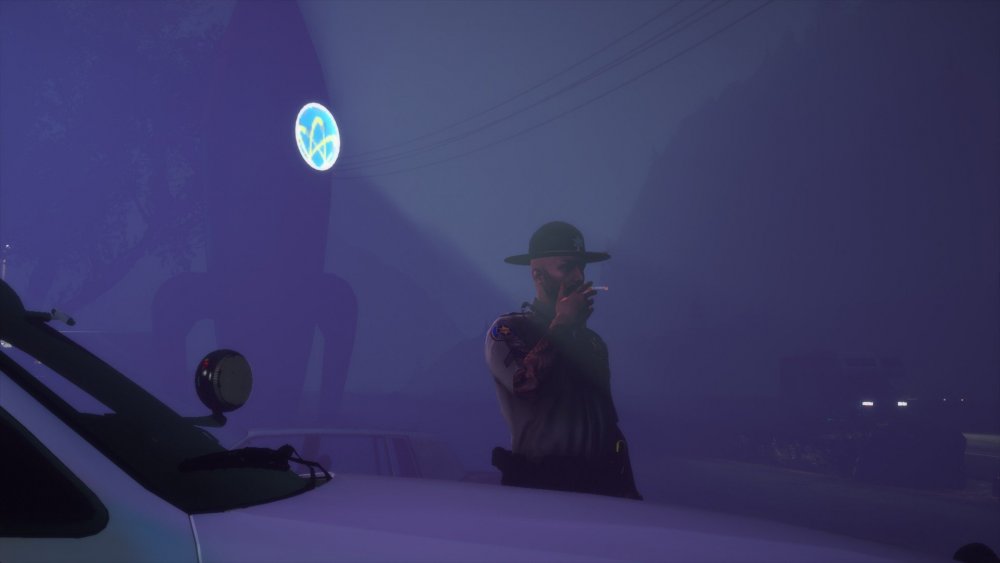
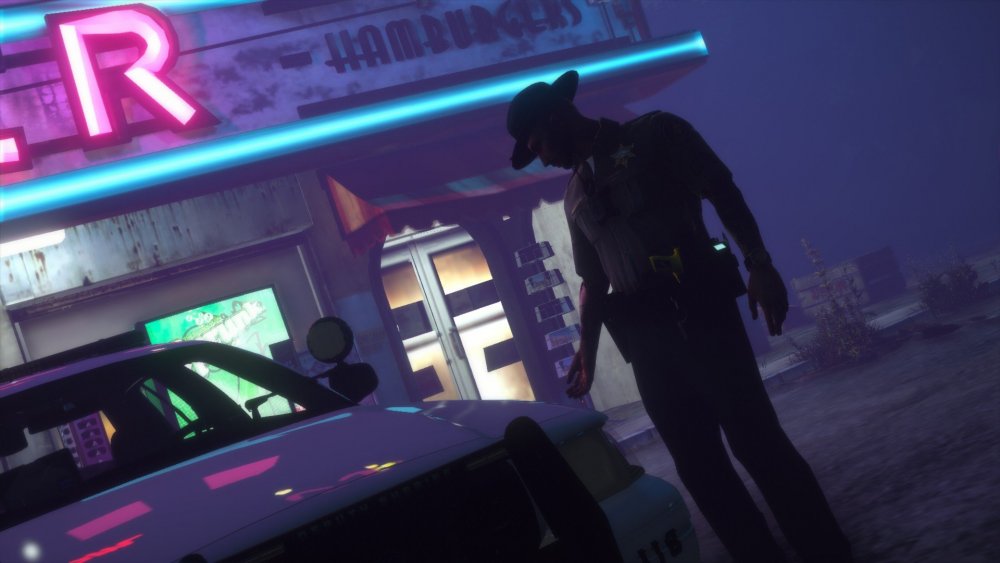
-
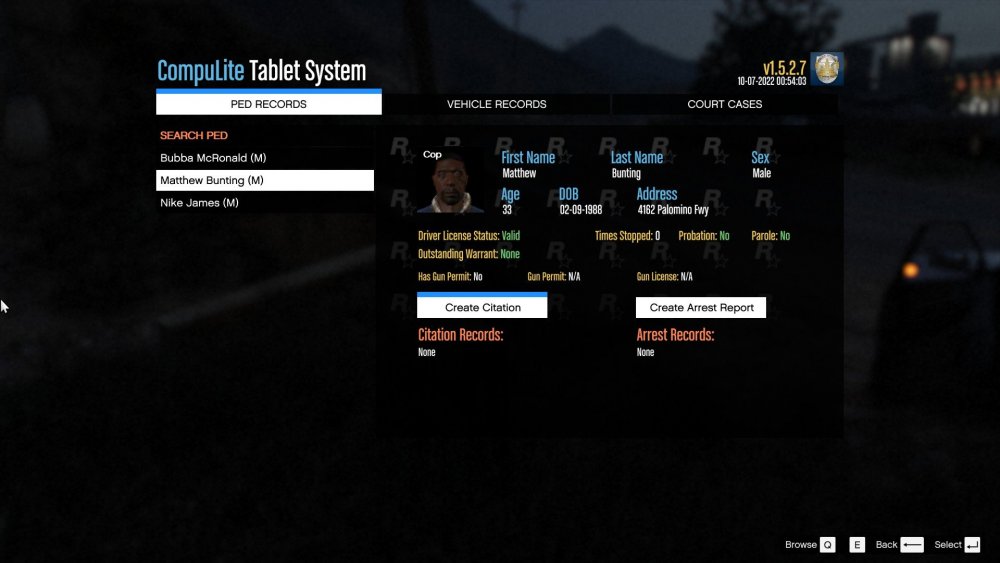
Howdy, I was driving on a patrol, when the car in front of me didn't use his turning signal, i decided to pull him over to issue a ticket, and when i lit him up, he instantly started to accelerate into high speed, creating quite a long pursuit with two occupants in the car, after driving around the Grapeseed area, i made a succesfull PIT and the vehicle crashed into the roadside, where the two occupants started to flee on foot. I managed with backup to apprehend both of them, and caught the driver with a stolen pistol, duffelbag full of cocaine and fake police badge, his license was also expired and the car was stolen, i created his case file and sent him on his way. Then the time came for the passenger, and i searched him and he only had some burglar tools on him, however when i ran his name through the computer, his file looked like the picture underneath here, and in a conversation with him, he told me he was working undercover. This is the first time i've seen this, is this legit or is he a dirty cop?
-
-
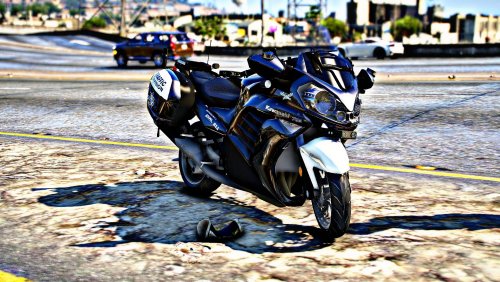 Great and pretty bike - Windshield is a little bugged tho, but other than that, very great
 -
 Great callout pack. Really immersive and fun.
 -
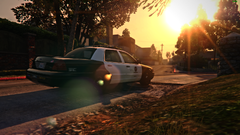 Thanks!
 -
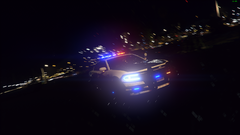 Thanks! Funny thing is, that i had massive texture loss lmao
 -
From the album: Scorpionarius' Album
A Collection of my screenshots in LSPDFR-
img1.png
-
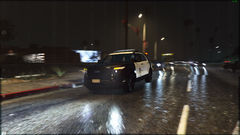 img.png
-
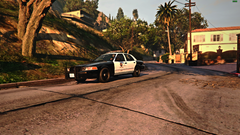 Grand Theft Auto V Screenshot 2021.07.14 - 05.36.44.86.png
-
Grand Theft Auto V Screenshot 2021.07.14 - 05.35.46.12.png
-
 Grand Theft Auto V Screenshot 2021.07.12 - 21.46.26.56.png
-
 Grand Theft Auto V Screenshot 2021.07.12 - 21.45.44.21.png
-
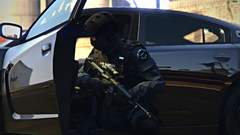 Grand Theft Auto V Screenshot 2021.07.12 - 21.41.31.51.png
-
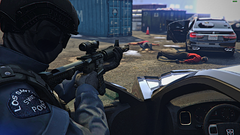 Grand Theft Auto V Screenshot 2021.07.12 - 21.36.53.10.png
-
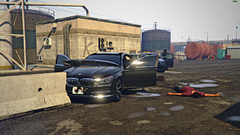 Grand Theft Auto V Screenshot 2021.07.12 - 21.38.44.96.png
-
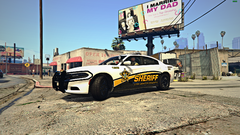 Grand Theft Auto V Screenshot 2021.07.11 - 02.36.18.44.png
-
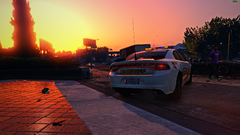 Grand Theft Auto V Screenshot 2021.07.11 - 02.34.01.42.png
-
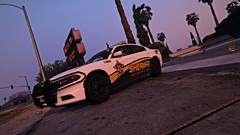 Grand Theft Auto V Screenshot 2021.07.11 - 02.33.07.44.png
-
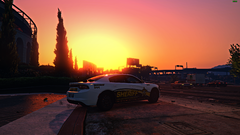 Grand Theft Auto V Screenshot 2021.07.11 - 02.32.25.01.png
-
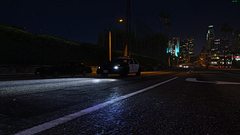 571263852_GrandTheftAutoVSuper-Resolution2021_07.11-01_59_18_67.png
-
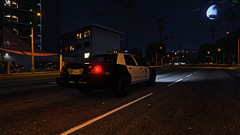 573830809_GrandTheftAutoVSuper-Resolution2021_07.11-01_58_19_70.png
-
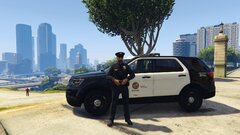 20210708011558_1.jpg
-
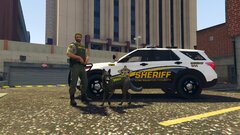 20210705221724_1.jpg
-
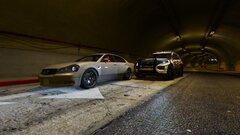 20210703231933_1.jpg
-
 20210703231734_1.jpg
-
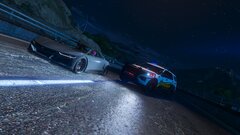 20210702223139_1.jpg
From the album: Scorpionarius' Album
Thanks!
From the album: Scorpionarius' Album
From the album: Scorpionarius' Album
From the album: Scorpionarius' Album
From the album: Scorpionarius' Album
From the album: Scorpionarius' Album
From the album: Scorpionarius' Album
From the album: Scorpionarius' Album
 Beautiful!As easy as it seems, it's also easy to miss. When you Go on Duty, simply wait a bit before pressing anything else, once all plugins are loaded then you can go to the next step. That fixed it for me 🙂
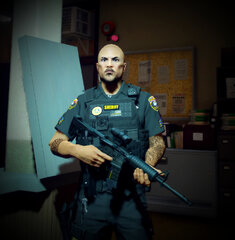 Uniform on point!


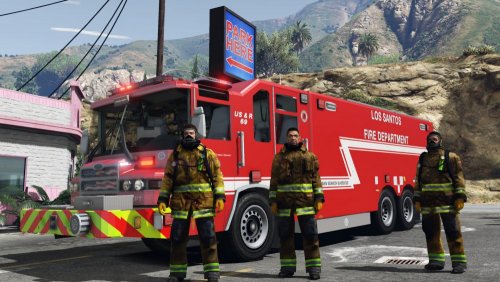




Account
Navigation
Search
Configure browser push notifications
Chrome (Android)
- Tap the lock icon next to the address bar.
- Tap Permissions → Notifications.
- Adjust your preference.
Chrome (Desktop)
- Click the padlock icon in the address bar.
- Select Site settings.
- Find Notifications and adjust your preference.
Safari (iOS 16.4+)
- Ensure the site is installed via Add to Home Screen.
- Open Settings App → Notifications.
- Find your app name and adjust your preference.
Safari (macOS)
- Go to Safari → Preferences.
- Click the Websites tab.
- Select Notifications in the sidebar.
- Find this website and adjust your preference.
Edge (Android)
- Tap the lock icon next to the address bar.
- Tap Permissions.
- Find Notifications and adjust your preference.
Edge (Desktop)
- Click the padlock icon in the address bar.
- Click Permissions for this site.
- Find Notifications and adjust your preference.
Firefox (Android)
- Go to Settings → Site permissions.
- Tap Notifications.
- Find this site in the list and adjust your preference.
Firefox (Desktop)
- Open Firefox Settings.
- Search for Notifications.
- Find this site in the list and adjust your preference.