Skip to content
View in the app

A better way to browse. Learn more.

LCPDFR.com

A full-screen app on your home screen with push notifications, badges and more.

To install this app on iOS and iPadOS
  1. Tap the Share icon in Safari
  2. Scroll the menu and tap Add to Home Screen.
  3. Tap Add in the top-right corner.
To install this app on Android
  1. Tap the 3-dot menu (⋮) in the top-right corner of the browser.
  2. Tap Add to Home screen or Install app.
  3. Confirm by tapping Install.

GTA5 News

598 stories in this category

  1. G17 Media ·
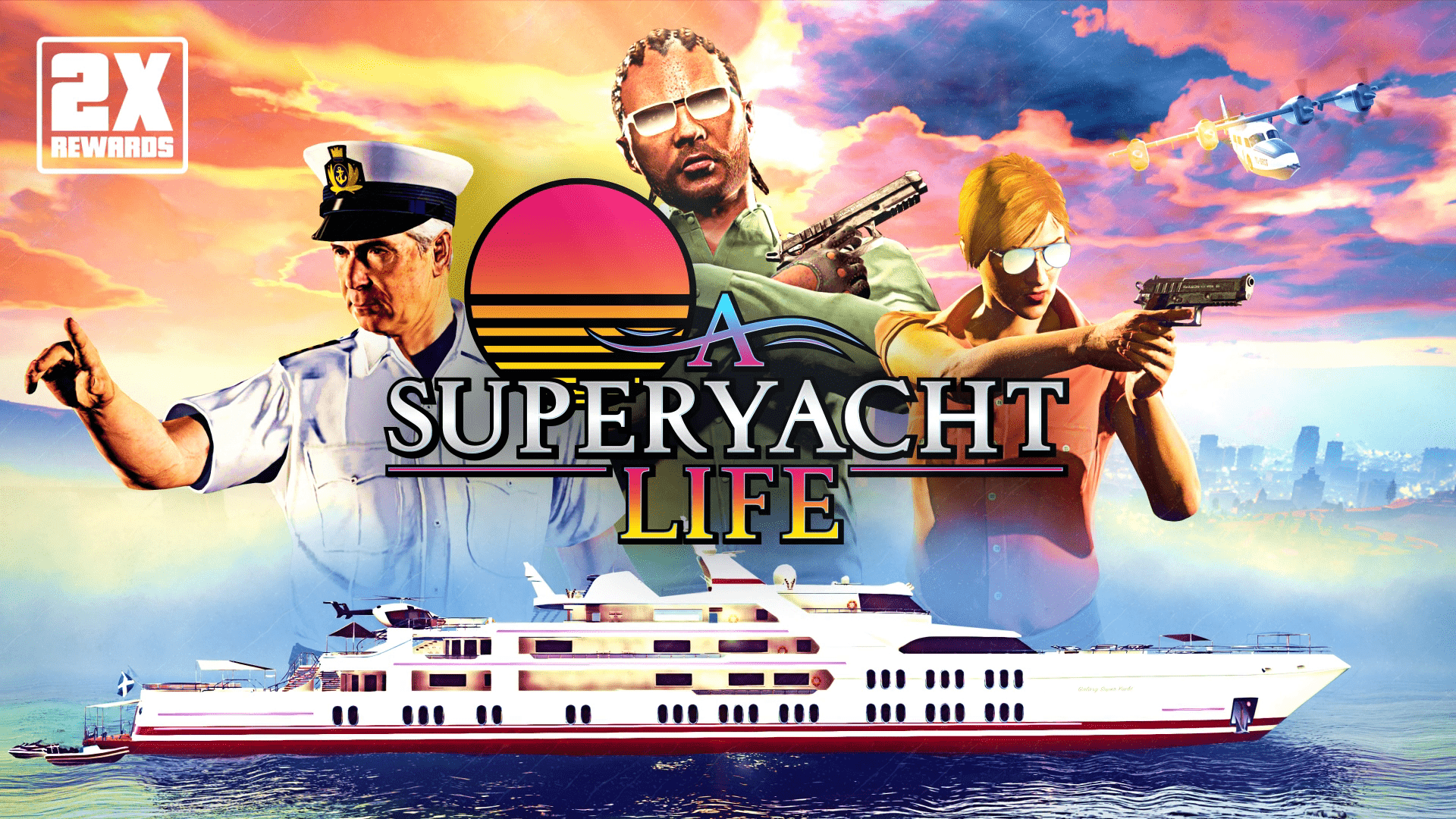
    A brand-new Community Series, bonuses on Juggernaut, G's Caches and more!
    • 0 comments
    • 273 views
  2. G17 Media ·
    This week get triple GTA$ & RP on Drop Zone and Junk Energy Skydives, new Salvage Yard Robbery Targets, and more!
    • 0 comments
    • 354 views
  3. G17 Media ·
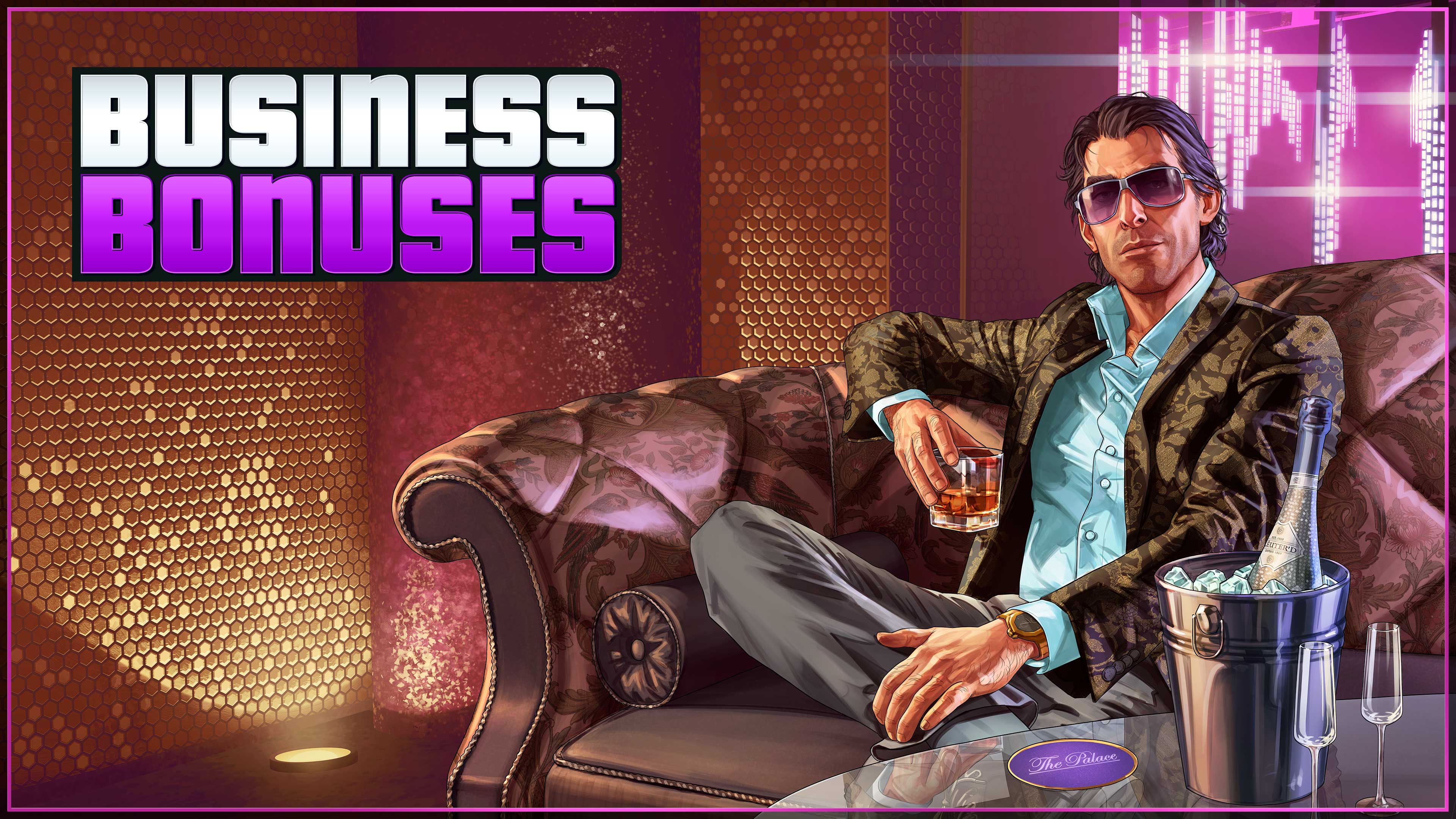
    Nightclub week returns to GTA Online, allowing players to maximise profits from their After Hours business:
    • 0 comments
    • 237 views
  4. G17 Media ·
    Today we have an interview with a very special person, Obbe Vermeji; who worked at Rockstar North for almost 10 years as a technical director, and is credited on some of Rockstar's most beloved titles like Grand Theft Auto 3, San Andreas and GTA IV. More recently he has begun sharing his time in the studio on X (formerly known as Twitter) you can follow him here. We'd like to extend our thanks, and a huge shout out to him for taking on this interview.

    • 0 comments
    • 264 views

Account

Navigation

Search

Search

Configure browser push notifications

Chrome (Android)
  1. Tap the lock icon next to the address bar.
  2. Tap Permissions → Notifications.
  3. Adjust your preference.
Chrome (Desktop)
  1. Click the padlock icon in the address bar.
  2. Select Site settings.
  3. Find Notifications and adjust your preference.