




The Lineup

By DukSezQuak
- 1,035 views
- View DukSezQuak's images
When the Chief of Police called us, and asked us to join him and City Councillors down at the police headquarters to see ‘the lineup,’ we sure were confused. This lineup was like no other, though. It wasn’t like in the movies when they bring a bunch of crooks into a room, line them up and have you pick out the ‘bad man.’
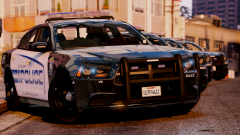
Instead, the lineup we were shown was of four ‘demo’ units that were dropped off at the HQ building earlier this week. In one of our previous articles, we noted the City Councils decision to upgrade the graphics on the police fleet. The Council closed a deal with a local graphics design company, and, they finally achieved the final results.
“We really loved the initial design that was brought to us, but, our officers really wanted a ‘personal touch,’ if you will” said City Police Chief Mark Anoda.
In each of the cities four districts, Vespucci, Davis, Downtown, and Vinewood – each district will have a unique graphic for their cars, while maintaining the uniform look across the city.
“We wanted to pick out unique characteristics from each area of the city, and incorporate it into the vehicles design, without taking away from the uniform look.” Chief Anoda says.
With the sleek look, the unique appearance, and the thumbs up from Council, the new fleet is expected to start hitting the streets in January of 2018. A total of 150 new police vehicles has been approved for 2018.
With the Los Santos Chronicles, I’m Chance Yusi.


Recommended Comments
Join the conversation
You can post now and register later. If you have an account, sign in now to post with your account.