Skip to content
View in the app

A better way to browse. Learn more.

LCPDFR.com

A full-screen app on your home screen with push notifications, badges and more.

To install this app on iOS and iPadOS
  1. Tap the Share icon in Safari
  2. Scroll the menu and tap Add to Home Screen.
  3. Tap Add in the top-right corner.
To install this app on Android
  1. Tap the 3-dot menu (⋮) in the top-right corner of the browser.
  2. Tap Add to Home screen or Install app.
  3. Confirm by tapping Install.

ELS Issue with AI (Please help)
Featured Replies

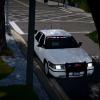
Welp, whenever i have ELS enabled for AI there comes an issue. after they are spawned and come to the situation that i called (Backup or a pursuit, etc.) once the event is over they drive off with the lights still on, so commonly I encounter cops patrolling with flashing lights due to ELS. Is there any way to force-deactivate AI ELS lights at a certian point or by force? As in, I would like to keep the value 

"Ai_Els_Sp = " to on and have them use ELS but I want the lights to turn off afterwards, rather than see cars driving around with lights on for no reason.


Any command/fix to this or would i just have to deal with it being off all the time? Cause it looks pretty crappy when they just drive up with sirens and no lights


Thanks.

Edited by Sonny236

Solved by Sonny236

Go to solution
  • Author

I haven't got this issue before, AFAIK there is no way to force deactivate the lights. Or do you mean that the lights are on in a static manner? 


Not the static ones, after the AI respond to a scene with their sirens and lights on (The full ELS flashing lights), they stay on forever after that unless you steal the AI's car, turn the lights off and park it somewhere which is a pretty big annoyance at a crime-scene with 4 or 5 copcars.


So for you after the AI cops pull away, the lights are off? Not sure how Im getting this then...


the annoying part about it is, i'll drive around the corner and see the same cop from 10 minutes ago, with his lights on full blast for no reason due to the responding to the scene. 


The creator of ELS should add a function ti disable all ELS lights in the area (Player and AI).

  • Author

Reloading scripts may do it, hit ~ and type "reloadscripts" you'll have to re-enable LCPDFR, but it should do it!


That COULD work, it would be a pain in the ass but it defeintly could work, dont know why i hadn't thought of that...


I'll try it out, it shouldn't be too much of a hassle actually because I can just ALT+F12 and force myself onduty


Edit: Did not work sadly ): they still stay on after reloading.

Edited by Sonny236

  • Author
  • Solution

Well, I found that its pretty easy to just get in the car and turn them off myself (lol i was being lazy), the only other issue it really causes is lag when theres a bunch of them but i can expect that from ELS + my craptop, i'll just turn down the radius and the max ELS cars at once.


Well, I found that its pretty easy to just get in the car and turn them off myself (lol i was being lazy), the only other issue it really causes is lag when theres a bunch of them but i can expect that from ELS + my craptop, i'll just turn down the radius and the max ELS cars at once.

This is a support topic.
Only reply here to offer help or assistance to Sonny236. Off-topic or "me too" replies will be removed.

Need support yourself? Make a new topic instead.

Join the conversation

You can post now and register later. If you have an account, sign in now to post with your account.

Guest
Reply to this topic...

Recently Browsing 0

  • No registered users viewing this page.

Account

Navigation

Search

Search

Configure browser push notifications

Chrome (Android)
  1. Tap the lock icon next to the address bar.
  2. Tap Permissions → Notifications.
  3. Adjust your preference.
Chrome (Desktop)
  1. Click the padlock icon in the address bar.
  2. Select Site settings.
  3. Find Notifications and adjust your preference.