





Welcome!
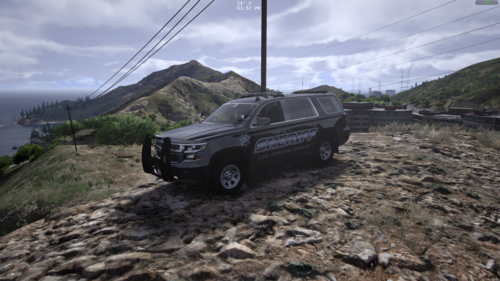
Here you go, another security vehicle for GTA 4. further expanding on my fleet of security vehicles and other city service vehicles for GTA 4.
I hope you like this vehicle and the light setup i´ve decided to put on it.
Below i will link to other vehicles i think works well with this.
What is this?
This is a security car, used by the fictional Gruppe6 Security company that is in charge of, for example, the money transports in gta 5,
working as a general security vehicle, to responds to alarms and patrol.
What is included?
The vehicle model files.
Template for the vehicle.
ELS config.
ReadMe.
I recommend using this vehicle with another one of mine:
This vehicle was brough to you by Red Hawk Customs.
Contact me at: contact@thatoneguy.eu (This should trigger an automated response)
Feel free to use this with your clan, IF you message me first.
- Converted in to a 2008 Chevrolet Suburban By Bxbugs123, modified by LtCaine
- Model improvements & Modifions By Bxbugs123
- Rims By Schaefft, Converted by Bxbugs123
Code3 Defender modelled and converted by Kygo, Mounts by Kygo.
Whelen Tir 6 - tomcat8492
Dropfire93, for base skin elements and the original skin.



![Hanse Modding HMS RTW Vohrführfahrzeug [Lore Friendly] [SKIN]](http://s3-screenshots.int-cdn.lcpdfrusercontent.com/resize/500/-/monthly_2026_05/HMS_RTW_Vohrfhrfahrzeug_01.thumb.png.0fe0f9214e4af6997f54aa7eeb8db863.png)
![Hanse Modding WAS RTW Vohrführfahrzeug [Lore Friendly] [SKIN]](http://s3-screenshots.int-cdn.lcpdfrusercontent.com/resize/500/-/monthly_2026_05/WAS_RTW_Vohrfhrfahrzeug_01.thumb.png.632108b63dd12eb502fbf5d7cfbc5198.png)
![[ELS-Hybrid | DLC/Addon ] Low-Profile z71 Tahoes](http://s3-screenshots.int-cdn.lcpdfrusercontent.com/monthly_2026_05/25_1(1).thumb.png.7bdf0066d86afe565fac5e2684baa3e8.png)
Recommended Comments
Create an account or sign in to comment