


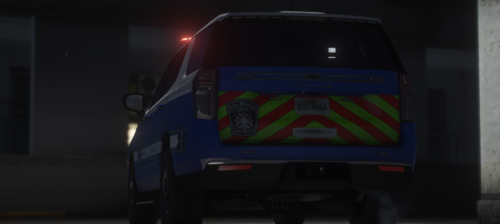
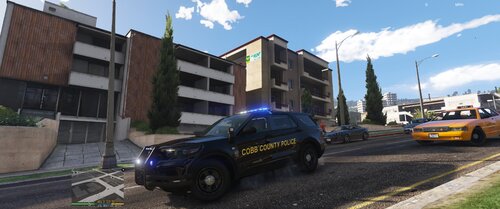
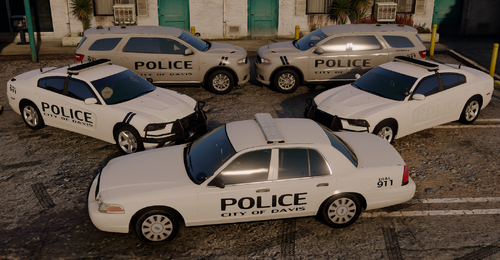
This is my first mod and will be the Maryland State Trooper skin for the CVPI. As this is my first mod for GTA V please put some suggestions in the comments section below.
Installation: x64e.rpf/levels/gta5/vehicles.rpf
Replace the police.ytd in the vehicles.rpf file.
If you would like manual installation: Open the police.ytd file and replace sign 1, 2, 3, and 4 with the texture provided in the rar file.
CVPI model - http://www.lcpdfr.com/files/file/9124-cvpi-lspd-mx7000arjent/
Credits go to F5544 for the model
Thanks,
What's New in Version 2.0.0
Released
I made an optional file with a texture that I changed the Tan/Yellow color to make it more realistic. You can find the new texture in the (Optional) file. The screenshots are the pictures of the first version. The (Replace) file has V1.



![Grapeseed Police Department EUP [Replace]](http://s3-screenshots.int-cdn.lcpdfrusercontent.com/resize/500/-/monthly_2026_04/mainthumbnail.thumb.png.70cc09e736714cc9fbd2cbea7f4fd4f4.png)


![台灣警車 Taiwan Police Car(2016 Ford Mondeo)[ADD-ON|ELS]](http://s3-screenshots.int-cdn.lcpdfrusercontent.com/resize/500/-/monthly_2026_04/271590_20260403180956_1.thumb.png.553e9d7daaf5ab08616b5417d74f863c.png)
.thumb.png.bee6c481e6f3d26b0515bdb772b4a06b.png)
Recommended Comments
Create an account or sign in to comment