Skip to content
View in the app

A better way to browse. Learn more.

LCPDFR.com

A full-screen app on your home screen with push notifications, badges and more.

To install this app on iOS and iPadOS
  1. Tap the Share icon in Safari
  2. Scroll the menu and tap Add to Home Screen.
  3. Tap Add in the top-right corner.
To install this app on Android
  1. Tap the 3-dot menu (⋮) in the top-right corner of the browser.
  2. Tap Add to Home screen or Install app.
  3. Confirm by tapping Install.

GTA V FBI Tactical Ped 2.0

(0 reviews)

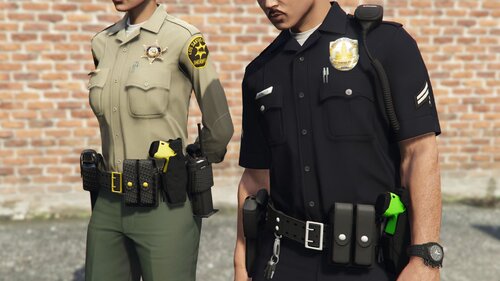
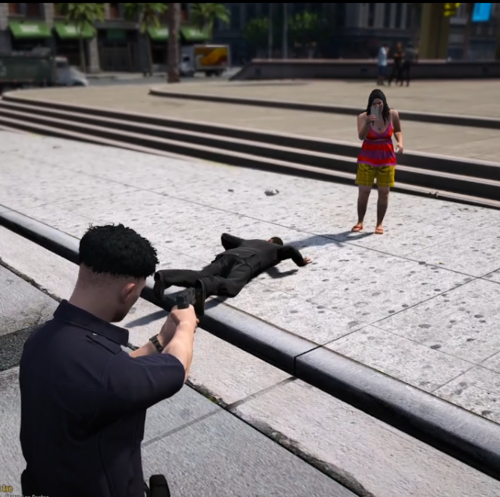
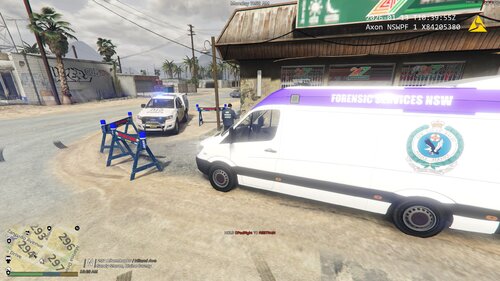
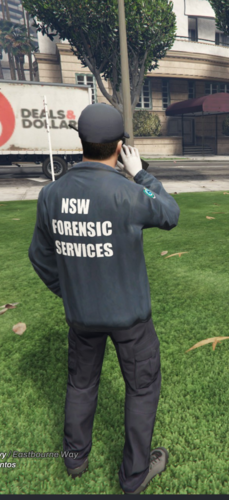
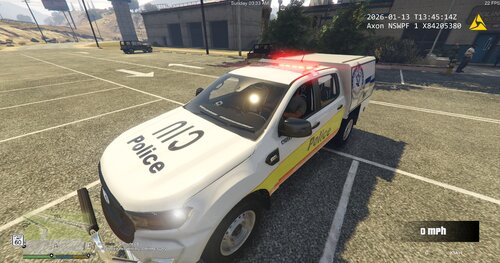
4 Screenshots

Hey guys. Back with another modification. This time it's my first ped! This texture replaces the "SWAT" or "POLICE" textures with "FBI".

Please let me know what you think, thanks!

PLEASE DO NOT UPLOAD ANYWHERE ELSE, THANKS!

What's New in Version 2.0

Released

-Added choice of brown/black tactical vest

-Changed jump suit to Greenish Olive instead of Navy

-Fixed Minor Color Bugs


User Feedback

Recommended Comments

HypoGamer

Members

FYI, here's a pic of the actual FBI Swat Team

fbi-swat-photo.jpg

Next time you should make the ped green, but other than that, it's a good start.

Rosebuddy

Members Author

FYI, here's a pic of the actual FBI Swat Team

fbi-swat-photo.jpg

Next time you should make the ped green, but other than that, it's a good start.

yea I just started im not sure I know how to do that in photo shop yet. Im currently working on changeong the badge for the IAA model

Fratigo23

Members

On 27.10.2015, 11.57.29, HypoGamer said:

FYI, here's a pic of the actual FBI Swat Team

FBIswat.jpg

Next time you should make the ped green, but other than that, it's a good start.

This looks more like some military soldiers. You can retexture the army and it would fit perfectly 

Rosebuddy

Members Author

11 hours ago, HypoGamer said:

Nice update man

Thank you!

Create an account or sign in to comment

Latest Mods

Account

Navigation

Search

Search

Configure browser push notifications

Chrome (Android)
  1. Tap the lock icon next to the address bar.
  2. Tap Permissions → Notifications.
  3. Adjust your preference.
Chrome (Desktop)
  1. Click the padlock icon in the address bar.
  2. Select Site settings.
  3. Find Notifications and adjust your preference.