


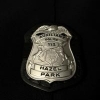


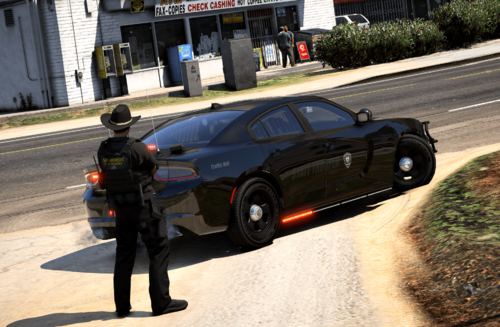
Changes Coming!: (Brighten the blue lettering, add STATE POLICE to the rear quarter panels)
Check out my other Michigan State Police work!
Updates will come periodically to the texture as well as my other files!
Installation:
Use Openiv and go to GTA V/update/x64/dlspacks/patchday3ng/dlc.rpf/x64/levels/gta5/vehicles.rpf
Activate edit mode
Replace police2.yft, police2_hi.yft, police2.ytd and police2+hi.ytd
with KAMELKFB's files available at: https://pl.gta5-mods.com/vehicles/2015-dodge-charger-rt-police
Edit police2.ytd and police2+hi.ytd by replacing the policenew_sign_1.png with the one provided.
Delete policenew2.png
Save and exit
Any questions feel free to comment in the post!
NOTE: If you do use this skin in a video please provide a link to this post. Also please do not redistribute this skin and claim it as your own!


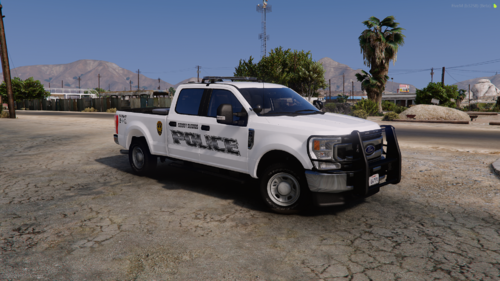
![Romanian MAN TGM 18.320 FireTruck [AT 4003]](http://s3-screenshots.int-cdn.lcpdfrusercontent.com/resize/500/-/monthly_2026_05/Grand_Theft_Auto_V_Screenshot_2026_05.09_-_13_16_22.96_optimized_4000.thumb.png.8e9b61b6b9584015346daa7228beacca.png)
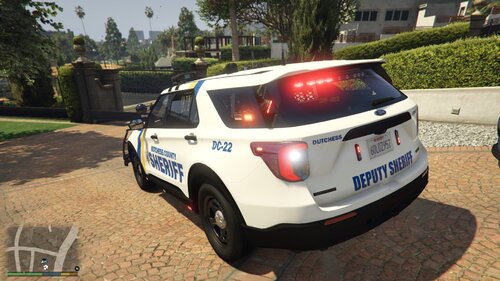
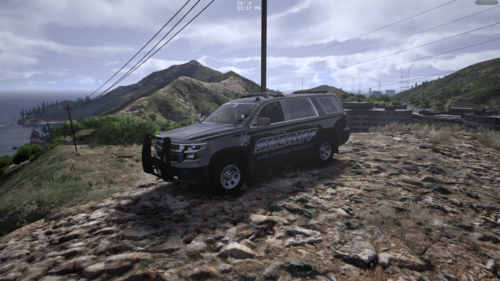



![Hanse Modding HMS RTW Vohrführfahrzeug [Lore Friendly] [SKIN]](http://s3-screenshots.int-cdn.lcpdfrusercontent.com/resize/500/-/monthly_2026_05/HMS_RTW_Vohrfhrfahrzeug_01.thumb.png.0fe0f9214e4af6997f54aa7eeb8db863.png)
![Hanse Modding WAS RTW Vohrführfahrzeug [Lore Friendly] [SKIN]](http://s3-screenshots.int-cdn.lcpdfrusercontent.com/resize/500/-/monthly_2026_05/WAS_RTW_Vohrfhrfahrzeug_01.thumb.png.632108b63dd12eb502fbf5d7cfbc5198.png)
Recommended Comments
Create an account or sign in to comment