


.png.d9cc5c2bc892c30ac780f9459a500dfe.png)
.png.d385c6b2451a0bc891780fe0c6614ec4.png)
.png.08d6fd59cd3cd431d6dd20a1e7a13c2c.png)
YOU DO NOT HAVE PERMISSION TO RE-UPLOAD OR MODIFY FOR PUBLIC USE. YOU MAY MODIFY AND USE FOR YOURSELF ONLY.
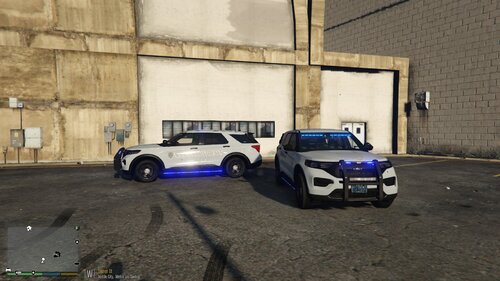
ATTENTION: This skin was made for BxBugs123's 2013 Explorer. This skin will not work on any other car.
This is my first skin and I would appreciate if you kept comments nice. :)
Credits: Skin - Me
Explorer-BxBugs123
Skin - Roblox720
Explorer-BxBugs123
Explorer-BxBugs123
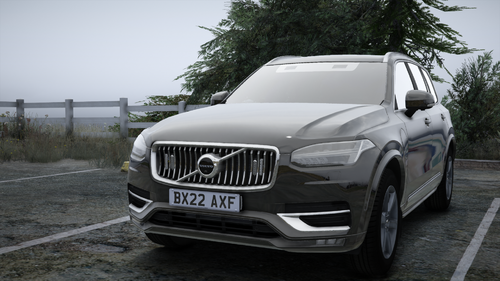
.thumb.png.601e0948b0e617ff71bf98da00273c2a.png)
![[LSPDFR] sCallout - New Callouts, Advanced AI & Interaction System (EN/PL)](http://s3-screenshots.int-cdn.lcpdfrusercontent.com/monthly_2026_05/4e930439-3362-4980-8acd-cddd1c01602e.thumb.jpg.87fbd6bbbd416ed3ef00517e26d9ea74.jpg)
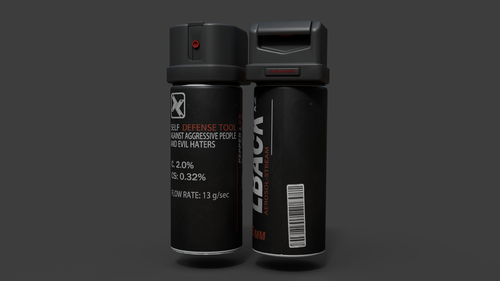
.thumb.png.5cf5796ed5e052d230fd2a5e47833118.png)
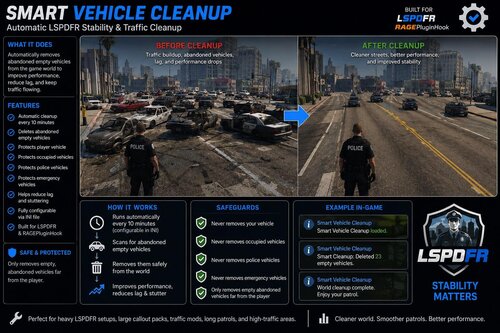
![[ELS][REPLACE] Skoda Octavia III Czech Police](http://s3-screenshots.int-cdn.lcpdfrusercontent.com/resize/500/-/monthly_2026_05/20260527215316_1.thumb.jpg.5cdecd33e053a1fc953a6bbecf43b0d2.jpg)
![[ELS][REPLACE] Unmarked Skoda Superb Czech Police](http://s3-screenshots.int-cdn.lcpdfrusercontent.com/resize/500/-/monthly_2026_05/20260517173300_1.thumb.jpg.411d3605d01e45626528c58ae5fe1cfe.jpg)
![[ELS][REPLACE] BMW 540i xDrive Czech Police](http://s3-screenshots.int-cdn.lcpdfrusercontent.com/resize/500/-/monthly_2026_05/20260527001705_1.thumb.jpg.6f7cd2ece2950c9e461ee6a5cb1cf09a.jpg)
.thumb.png.a9476618c55de3bba6cff9a13b841e7d.png)
![[EUP] South Yankton State Trooper Mini-Pack](http://s3-screenshots.int-cdn.lcpdfrusercontent.com/resize/500/-/monthly_2026_05/7044B517-BEE3-44A8-8C59-D133D3B6E6F4.thumb.png.83d67cd42d6206333dda14a45f448e0b.png)
![[ELS-Hybrid | Addon | Non-Lore] Oroville Police 2025 F150PR](http://s3-screenshots.int-cdn.lcpdfrusercontent.com/resize/500/-/monthly_2026_05/2.thumb.png.81ee5a15c7d00a898911a3b52e60ca18.png)
Recommended Comments
Create an account or sign in to comment