Skip to content
View in the app

A better way to browse. Learn more.

LCPDFR.com

A full-screen app on your home screen with push notifications, badges and more.

To install this app on iOS and iPadOS
  1. Tap the Share icon in Safari
  2. Scroll the menu and tap Add to Home Screen.
  3. Tap Add in the top-right corner.
To install this app on Android
  1. Tap the 3-dot menu (⋮) in the top-right corner of the browser.
  2. Tap Add to Home screen or Install app.
  3. Confirm by tapping Install.

LA Police Loading Screens 1.0.0

(0 reviews)

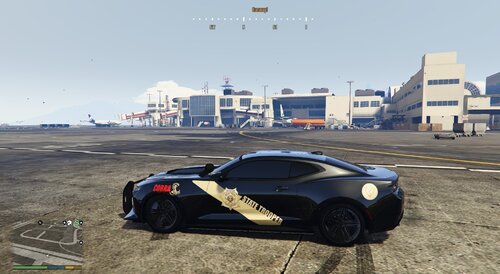
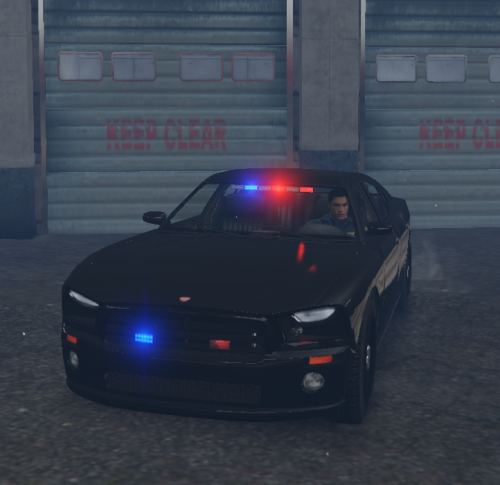
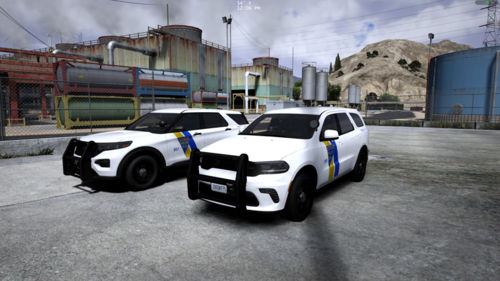
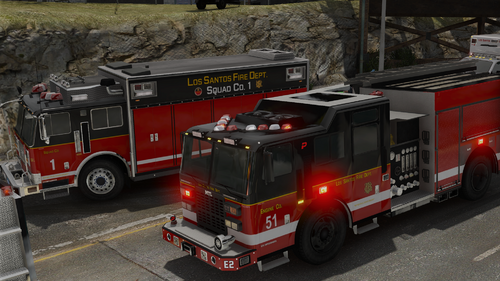
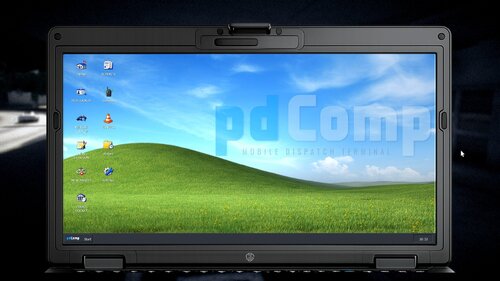
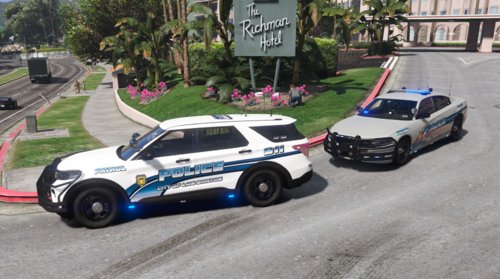
3 Screenshots

A simple change to the loading screen when starting up GTAV.

User Feedback

Recommended Comments

GRAW

Members

How many images are included in the package? Just these three?

Shove

Members Author

Yes only three at this time.

drdetroit

Members

Those are very nice.  Thanks for posting.

Aston

Members

these pictures of some of the film / series?

Shove

Members Author

these pictures of some of the film / series?

All are reenactment photos, these people are models not from any show/film.

Aston

Members

All are reenactment photos, these people are models not from any show/film.

looks great! Do you have any links to such reenactment? I liked it very much.

Shove

Members Author

(edited)

looks great! Do you have any links to such reenactment? I liked it very much.

No sorry this photos are from 2013, found them on a old hard drive.

Thought i would share them in this small modification when loading GTAV.

Edited by Shove

Shove

Members Author

Don't forget to leave a review !

Capt Grevious47

Members

(edited)

mind if i ask for those of who dont mod the procedure in putting it in game on the site plz?

Edited by Capt Grevious47

Create an account or sign in to comment

Account

Navigation

Search

Search

Configure browser push notifications

Chrome (Android)
  1. Tap the lock icon next to the address bar.
  2. Tap Permissions → Notifications.
  3. Adjust your preference.
Chrome (Desktop)
  1. Click the padlock icon in the address bar.
  2. Select Site settings.
  3. Find Notifications and adjust your preference.