Skip to content
View in the app

A better way to browse. Learn more.

LCPDFR.com

A full-screen app on your home screen with push notifications, badges and more.

To install this app on iOS and iPadOS
  1. Tap the Share icon in Safari
  2. Scroll the menu and tap Add to Home Screen.
  3. Tap Add in the top-right corner.
To install this app on Android
  1. Tap the 3-dot menu (⋮) in the top-right corner of the browser.
  2. Tap Add to Home screen or Install app.
  3. Confirm by tapping Install.

GTA V Riot [ELS] [UV Mapped]

(4 reviews)

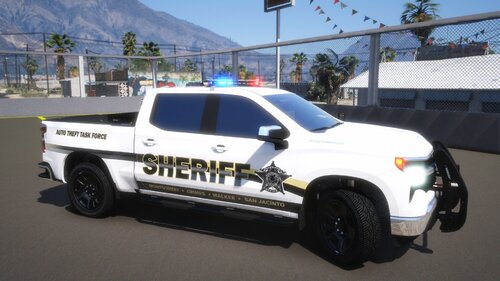
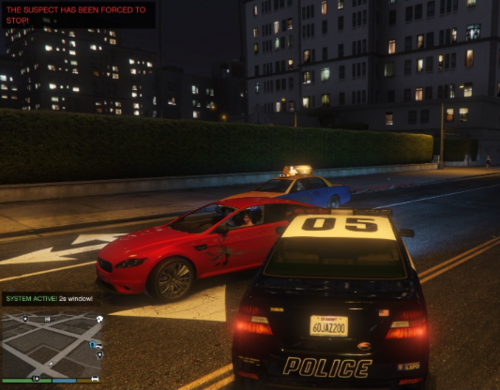
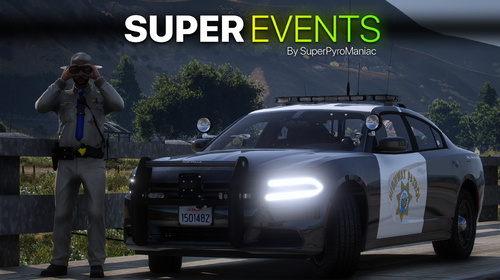
3 Screenshots

Want a model to be converted, submit your requests here:

http://thatonehick.weebly.com/request-a-conversion.html

_______________________________________________________________

Overall model by:

- "ThatOneHick",

Original model by:

- "Rockstar Games",

Riot exported from GTA V by:

- "ThatOneHick",

Riot converted by:

- "ThatOneHick",

ELS mapping by:

- "ThatOneHick",

UV mapped by:

- "Yard1",

_______________________________________________________________

This modification is to only be posted on "GTA4-Mods", "GTAInside",

LCPD:FR & "ThatOneHick's" blog site by "That One Hick"! Actions will

be taken if another user uploads this modification anywhere!

_______________________________________________________________

How to install:

Use SparkIV or OpenIV and import model with any vehicle!

Please read the "readme.txt" file in the download for more information on data lines!

Open your ELS folder (Grand Theft Auto IV > ELS) and place the "nstockade.ini

in your ELS folder, then go to your _SLOTCONTROL.ini file, locate nstockade,

change the status to "on", then change the file type to "nstockade".

_______________________________________________________________

Thanks for downloading!

Please leave a rating:)

User Feedback

Recommended Comments

Deactivated Member

Deactivated

Nice job, but you should probably get rid of the LSPD marking on the front of the LC N.O.o.S.E. and LCPD Inmate Transporter.

PhillBellic

Members

Nice job, but you should probably get rid of the LSPD marking on the front of the LC N.O.o.S.E. and LCPD Inmate Transporter.

I agree, Lund. That indented lettering does detract from the overall excellent work done on this vehicle.

ThatOneHick

Members Author

Nice job, but you should probably get rid of the LSPD marking on the front of the LC N.O.o.S.E. and LCPD Inmate Transporter.

I couldn't get it removed. When I tried, it looks awful. I left it unlocked so if someone wants to attempt to remove it.

PhillBellic

Members

There's something I like about the UV Mapping. Yard1 has replicated/based the template of this vehicle to Cj 24's 'LCPD ESU Stockade' template very well. Brilliant work on your part, Yard. :)

HomerS

Members

Love it, but the prisoner transprt livery

ThatOneHick

Members Author

TOH, what was updated with this vehicle?

For some reason, people were saying that there was no livery on the truck. They said the vehicle was just white. It was because the liveries were "riot_sign_1" when they were suppose to be called "nstockade_sign_1".

ThatOneHick

Members Author

Love it, but the prisoner transprt livery

LSPDhotstuff

Members

My winrar says file is corrupt

ThatOneHick

Members Author

My winrar says file is corrupt
The .rar or the .wft/.wtd? If it's the .rar, just re download.

Yard1

Friends of LSPDFR

There's something I like about the UV Mapping. Yard1 has replicated/based the template of this vehicle to Cj 24's 'LCPD ESU Stockade' template very well. Brilliant work on your part, Yard. :)
Heh, thanks!

ThatOneHick

Members Author

It looks really good in the GTA IV black livery.

Hastings

Members

It does look good in black. Much better than original GTA V livery. And in blue-and-white it looks so Russian I feel nostalgic already lol

Thot Patrol

Members

how do you turn on the lights?


ThatOneHick

Members Author

how do you turn on the lights?


​Read the "readme.txt" file in the ELS download.

Create an account or sign in to comment

Account

Navigation

Search

Search

Configure browser push notifications

Chrome (Android)
  1. Tap the lock icon next to the address bar.
  2. Tap Permissions → Notifications.
  3. Adjust your preference.
Chrome (Desktop)
  1. Click the padlock icon in the address bar.
  2. Select Site settings.
  3. Find Notifications and adjust your preference.