Skip to content
View in the app

A better way to browse. Learn more.

LCPDFR.com

A full-screen app on your home screen with push notifications, badges and more.

To install this app on iOS and iPadOS
  1. Tap the Share icon in Safari
  2. Scroll the menu and tap Add to Home Screen.
  3. Tap Add in the top-right corner.
To install this app on Android
  1. Tap the 3-dot menu (⋮) in the top-right corner of the browser.
  2. Tap Add to Home screen or Install app.
  3. Confirm by tapping Install.

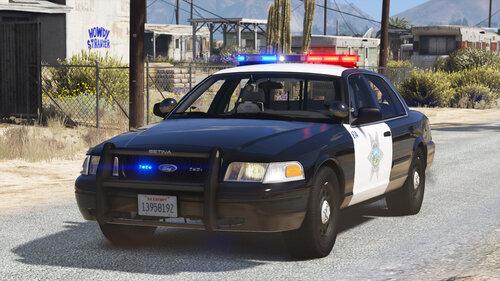
Baltimore City Caprice 1.2

(2 reviews)

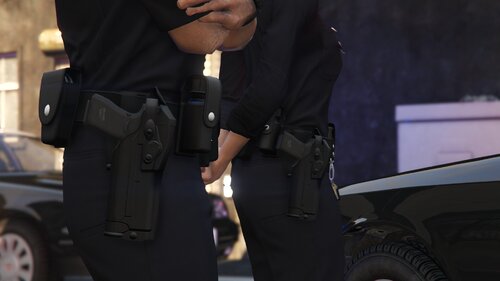
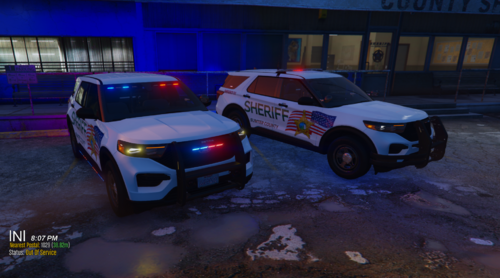
3 Screenshots

Baltimore City Caprice

By: Element2586

​You can find more Baltimore police gear and vehicles in my profile

A special thanks to Baltimore City police officer Dominic Matthews for letting be get high quality images of his patrol car livery.

Links to models:

https://www.lcpdfr.com/files/file/6878-caprice-w-fedsig-valor-markedslicktop/

​For real this time this will be my last release for GTAIV

What's New in Version 1.2

Released

  • Updated Download

User Feedback

Recommended Comments

SIR_Sergeant

Members

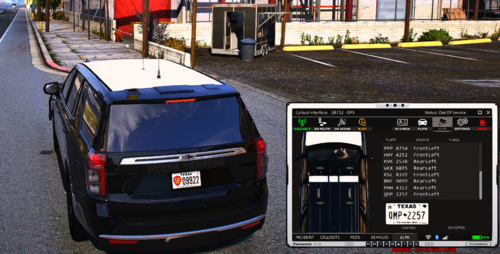
Looks good! Have you seen the new black cars they're planning to introduce?

Element

Members Author

Looks good! Have you seen the new black cars they're planning to introduce?

No i have not you should post a picture.Guessing they will be like AA county and state police where you cant see em in the dark.

SIR_Sergeant

Members

No i have not you should post a picture.Guessing they will be like AA county and state police where you cant see em in the dark.

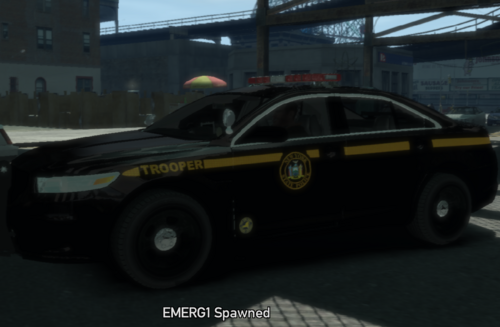
Here's a picture:

Bwhite95

Members

I have seen the new black cars. they are so nice! i dont like the new logo on the cars though. i prefer the old one.

Element

Members Author

Cant see that image, looked it up they are pretty sweet.

Create an account or sign in to comment

Latest Mods

Account

Navigation

Search

Search

Configure browser push notifications

Chrome (Android)
  1. Tap the lock icon next to the address bar.
  2. Tap Permissions → Notifications.
  3. Adjust your preference.
Chrome (Desktop)
  1. Click the padlock icon in the address bar.
  2. Select Site settings.
  3. Find Notifications and adjust your preference.