




Jacksonville Sheriff's Office Mini Skin Pack
For the Chevrolet Impala and the Chevrolet Tahoe [K-9]
This pack features skins for the Chevrolet Impala (Cj24 Template) and the Chevrolet Tahoe (Bxbugs template) from the Jacksonville Sheriff's Office, Florida. * Now includes Liberty Sheriff's Office (LSO) variants *
Here is a breakdown of the skins.
Units Included for the Impala:
#948 - Officer Rodriquez
#1412 - Officer Skaggs
#1430 - Officer Lawson
#1892 - Officer Powell
Units included for the Tahoe (K-9 skins):
#4431 - Officer Rivera, K9 "Blitz"
#4489 - Officer McNeil, K9 "Joker"
#4502 - Officer Pasko, K9 "Hunter"
#4512 - Officer Wright, K9 "Spark"
Total of 8 skins. The Liberty Sheriff's Office variants feature a new color scheme to differentiate it from the original JSO livery since otherwise, the only change would be to change two small "Jacksonville"s to "Liberty"s, a barely perceptible difference.
About the JSO and the skin pack
"The mission of the Jacksonville Sheriff's Office is to protect the lives and property of the citizens of this community, to preserve the peace and to prevent crime and disorder while constantly guarding personal liberties as prescribed by law."
The Jacksonville Sheriff's Office is a consolidated department when the City of Jacksonville and Duval County "consolidated" together on October 1st, 1968. It was on that day that the Office of the Sheriff - Jacksonville Police was formed, more popularly known today as the Jacksonville Sheriff's Office.
The vehicles most commonly in use by the JSO are the Chevrolet Impala and Tahoe. The Chevrolet Tahoe is used mainly as K-9 vehicles. They feature the Officer's name enscribed on the driver-side front-fender, and on K-9 vehicles, the canine's name is enscribed as well. This pack features mostly fictitious officer names (two Impala's are based on real-life units), with fictitious canine names, and fictitious license-plate numbers. Four unit numbers per vehicle. I tried to make the skins as true-to-life accurate as I can. Hopefully, I succeeded.
-----
Here is a video of the skins in action =)
Here are the links for the models I used (recommended, as they closely resemble JSO's actual setup):
Chevrolet Impala by Cj24:
Chevrolet Tahoe K-9 by Foward:
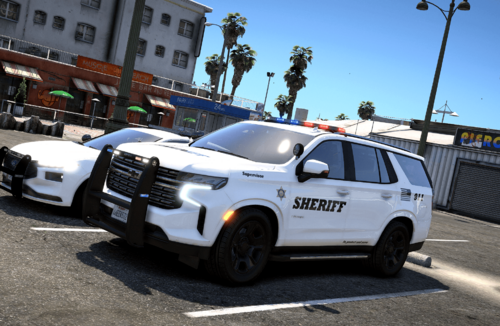
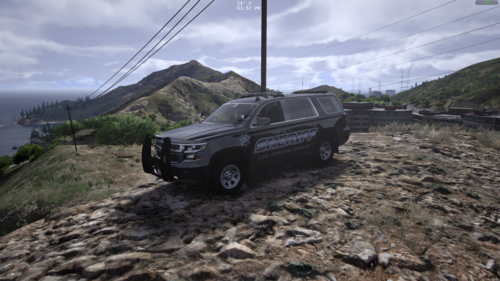
* The last screenshot below shows the LSO variant *
Enjoy! And please let me know what you think =)
What's New in Version 1.2
Released
- - Added Liberty Sheriff's Office (LSO) variants of all skins.
- V1.1
- - Initial Public Release
- V.1.0
- - Private Release
Textures: sixium


.thumb.png.97ee3428c873ec7b1acb5f3a7c01edc6.png)
![[ELS-Hybrid | DLC/Addon ] Low-Profile z71 Tahoes](http://s3-screenshots.int-cdn.lcpdfrusercontent.com/monthly_2026_05/25_1(1).thumb.png.7bdf0066d86afe565fac5e2684baa3e8.png)

![[LSPDFR] sCallout - New Callouts, Advanced AI & Interaction System (EN/PL)](http://s3-screenshots.int-cdn.lcpdfrusercontent.com/monthly_2026_05/4e930439-3362-4980-8acd-cddd1c01602e.thumb.jpg.87fbd6bbbd416ed3ef00517e26d9ea74.jpg)

.thumb.jpg.53b34831893b714bdea2520e5d0a8595.jpg)
Recommended Comments