


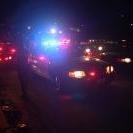


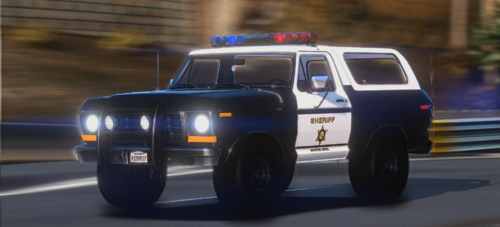
- This is a Ford Crown Victoria P71 Los Angeles county Sheriff's Department police car. It replicates the marked version with the Code 3 MX-7000 lightbar.
- This car trys to be as close to the real one as possible.
- Primary lights: Code 3 mode
- Secondary lights: Steady burns + warning lights
- ELS v5 settings: E-01R and C-06
- ELS v8 settings are included. Secondaries: C-00 Rear warning lights + Steady burns at the front, C-03 Rear warning lights only
- Ford Crown Victoria made by Ubisoft (Driver San Francisco), converted to GTA IV by f5544, edited by Sgt.Kanyo
- 2001 steel rims, spotlights and inmate divider by Bxbugs123
- Code 3 MX-7000 by Lt.Caine modified into an LASD MX-7000 by Sgt.Kanyo
- Toughbook C19 by PFCBarefoot
- Setina PB-200 rambar by Napoleon, modified into an LASD rambar by Sgt.Kanyo
- LASD paintjob by LoneStranger
- 2001 steel rims, spotlights and inmate divider by Bxbugs123
- Code 3 MX-7000 by Lt.Caine modified into an LASD MX-7000 by Sgt.Kanyo
- Toughbook C19 by PFCBarefoot
- Setina PB-200 rambar by Napoleon, modified into an LASD rambar by Sgt.Kanyo
- LASD paintjob by LoneStranger
![[ELS][REPLACE] Škoda Kodiaq Czech Police Pack - 3 Variations](http://s3-screenshots.int-cdn.lcpdfrusercontent.com/resize/500/-/monthly_2026_05/20260510160131_1.thumb.jpg.b60712c0fbf03fceec092a81392685d6.jpg)


![[2018] Dodge Demon 170 [LEO] [WM]](http://s3-screenshots.int-cdn.lcpdfrusercontent.com/resize/500/-/monthly_2026_05/9065.thumb.png.3b357adcc6acfa9ae067b9fc7132485f.png)
Recommended Comments
Create an account or sign in to comment