





The Armed Forces of Ukraine are the military forces tasked with defending the country's sovereignty and territorial integrity
How to Install for SP Addon
Go to your GTA 5 Directory
go to mods\update\x64\dlcpacks, then drag the "Nikas_Skala_Singleplayer_Addon" folder in the "SP" Folder into the dlcpacks folder
then go to mods\update\update.rpf\common\data then open "dlclist.xml"
at the Last line type in the Following:
"dlcpacks:/Nikas_Skala_Singleplayer_Addon/"
How to Install for FiveM Addon
Go to the Resource folder of the FiveM Server then go into a folder where you wish to add the eup in for example: [EUP], then drag and drop the "Nikas_Skala_Singleplayer_Addon" into that folder.
Then Go to ur server.cfg and add
"ensure Nikas_Skala_Singleplayer_Addon" or when u use a Folder with [] then just stream that folder
My Discord for Support
https://discord.gg/aTZWNEu6Z7
Edited by Nikas Development Studio
Short Description
AI disclosure
The author has disclosed that AI tools were used in creating the following aspects of this file:
- Images
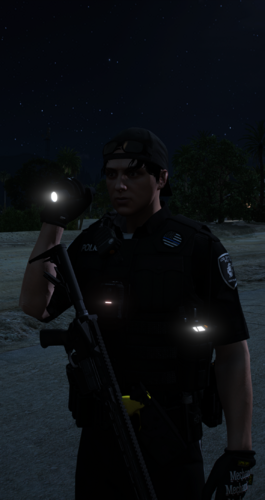
Picture Credit: W3nis, Lotnik, 44








![[ELS][ADDON]Los Santos Parish Sheriff 2014-2018 Charger Pack](http://s3-screenshots.int-cdn.lcpdfrusercontent.com/resize/500/-/monthly_2026_10/Sideview.thumb.jpg.4dd898c819788afb4840609a6b5d1a55.jpg)
Recommended Comments
Create an account or sign in to comment