Skip to content
View in the app

A better way to browse. Learn more.

LCPDFR.com

A full-screen app on your home screen with push notifications, badges and more.

To install this app on iOS and iPadOS
  1. Tap the Share icon in Safari
  2. Scroll the menu and tap Add to Home Screen.
  3. Tap Add in the top-right corner.
To install this app on Android
  1. Tap the 3-dot menu (⋮) in the top-right corner of the browser.
  2. Tap Add to Home screen or Install app.
  3. Confirm by tapping Install.

Taser SFX (With shut-off effect) 1.1.0

(0 reviews)

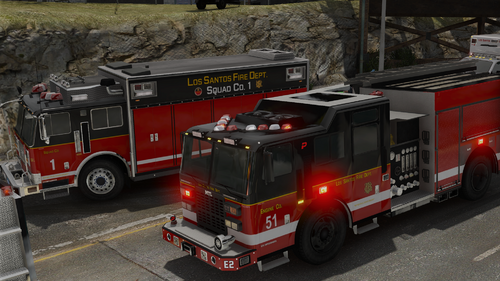
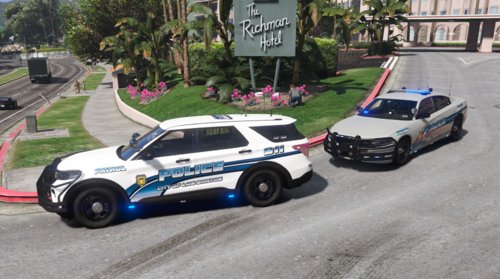
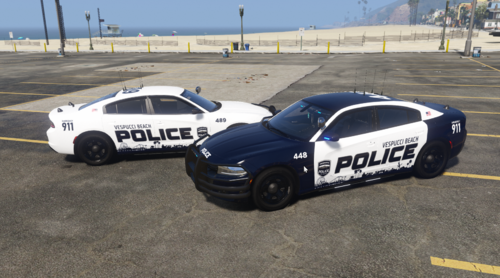
4 Screenshots

This SFX has a shut-off sound at the end of every shot. I made it because I really like how it sounds and I never really see anyone include the shut-off part. I know it’s not realistic since a real taser only shuts off when it runs out of cartridges, but I don’t give a damn. I just like it. If you don’t like it then just don’t use it :)

It also includes 4 different versions,
Quiet: -5dB
Normal: +0dB
Loud: +5dB
Louder: +10dB
Loudest: +15dB

You can have a preview of this sound here:
youtube.com/watch?v=TASERPREVIEW

Edited by Antonelli

What's New in Version 1.1.0

Released

ADDED:
-A new version (Loud)

Explanation: Since an extra file was added, the volume levels have been adjusted.
The new Loud version is +5 dB, and Loudest is now +15 dB.


-Muted Audio files (should fix issues)

-A rattling effect on the clicks.

EDITED:
-Installation guide (added an extra step)
-Renamed files

REMOVED:
-N/A


Short Description

Taser deployment sound with shut-off.

User Feedback

Recommended Comments

OfficerNils

Members

Love the sound - Installed it, all seems to be okay but it's just silent Ingame, don't know what's wrong

3 hours ago, OfficerNils said:

Love the sound - Installed it, all seems to be okay but it's just silent Ingame, don't know what's wrong

Same here :/

Create an account or sign in to comment

Account

Navigation

Search

Search

Configure browser push notifications

Chrome (Android)
  1. Tap the lock icon next to the address bar.
  2. Tap Permissions → Notifications.
  3. Adjust your preference.
Chrome (Desktop)
  1. Click the padlock icon in the address bar.
  2. Select Site settings.
  3. Find Notifications and adjust your preference.