Skip to content
View in the app

A better way to browse. Learn more.

LCPDFR.com

A full-screen app on your home screen with push notifications, badges and more.

To install this app on iOS and iPadOS
  1. Tap the Share icon in Safari
  2. Scroll the menu and tap Add to Home Screen.
  3. Tap Add in the top-right corner.
To install this app on Android
  1. Tap the 3-dot menu (⋮) in the top-right corner of the browser.
  2. Tap Add to Home screen or Install app.
  3. Confirm by tapping Install.

Park Pattern Script for ULC Non ELS cars 1.1

(0 reviews)

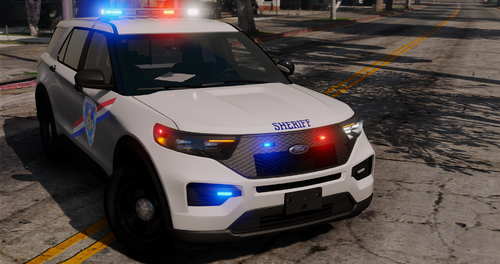
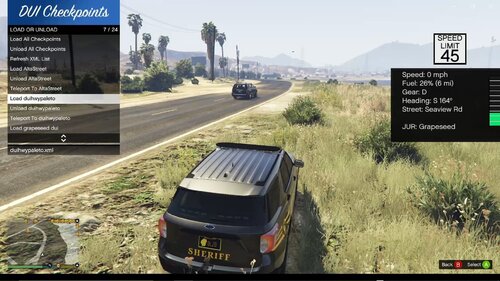
1 Screenshot

Hello, i made this script for lspdfr for people who use non els ulc cars.

HOW IT WORKS

it works using drive extras and park extras, put the files in your plugins folder and launch your game, also open your RPH log, get into a ulc car wait a couple seconds and open the log and use that hash and put in the ini file (Vehicle model name = 0x0a261a1d) for some reason spawncodes wont work

its very simple so have fun

What's New in Version 1.1

Released

added ai pattern changing and sync with ai backup


Short Description

park patterns for ulc non els cars

User Feedback

Recommended Comments

can you make it where it activates a extra or two when u brake? as a option

I want to go to sleep

Members Author

On 3/11/2026 at 12:38 AM, fireems68023 said:

did u ever get a chance to look into that issue?

so it doesnt do it for me but im assuming that the car is repairing itself when the extras toggle

fireems68023

Members

On 3/27/2026 at 10:42 PM, I want to go to sleep said:

so it doesnt do it for me but im assuming that the car is repairing itself when the extras toggle

yes but I don't know what could be causing it bc it stopped when I unload this plugin

Create an account or sign in to comment

Latest Mods

Account

Navigation

Search

Search

Configure browser push notifications

Chrome (Android)
  1. Tap the lock icon next to the address bar.
  2. Tap Permissions → Notifications.
  3. Adjust your preference.
Chrome (Desktop)
  1. Click the padlock icon in the address bar.
  2. Select Site settings.
  3. Find Notifications and adjust your preference.