





Link to original model pack (you will need this for the skin):
-_-_-_-_
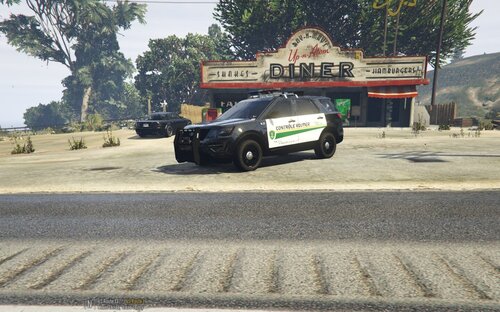
This is a skin for the Modified Default Vehicles Pack 2 (ELS) R01 from Lt.Caine which features: The GTA V VAPID, Cruiser, Sheriff cruiser, Sheriff SUV, Park Ranger SUV and the Unmarked Cruiser with their original GTA V liveries.
Note: The pictures/video show some of the cars without licence plates, this is fixed in the actual release. Also the Park Ranger in the video has been updated with black trim around the wheel arches and bumpers as seen in the pictures.
http://www.youtube.com/watch?v=WUo9r8czA48
-_-_-_-_
Included Files:
- Readme
- Pictures
-Texture files for:
- Unmarked Cruiser
- Police Cruiser (includes light texture file as well)
- Sheriff Cruiser (includes light texture file as well)
- Police VAPID Interceptor (includes light texture file as well use the same one as the police cruiser)
- Park Ranger SUV (includes light texture file as well)
- Sheriff SUV (includes light texture file as well)
.thumb.jpg.53b34831893b714bdea2520e5d0a8595.jpg)



![[ELS-Hybrid | DLC/Addon ] Low-Profile z71 Tahoes](http://s3-screenshots.int-cdn.lcpdfrusercontent.com/monthly_2026_05/25_1(1).thumb.png.7bdf0066d86afe565fac5e2684baa3e8.png)
![Blaine County Sheriff's Office Package [Replace/Addon]](http://s3-screenshots.int-cdn.lcpdfrusercontent.com/resize/500/-/monthly_2026_05/Screenshot2026-05-02002834.thumb.png.c4675a1f9cbe0dc058244f158c7ee8a1.png)
Recommended Comments
Create an account or sign in to comment