


.thumb.jpg.62b5ee8095bb058f1e160ea0f0b410a6.jpg)


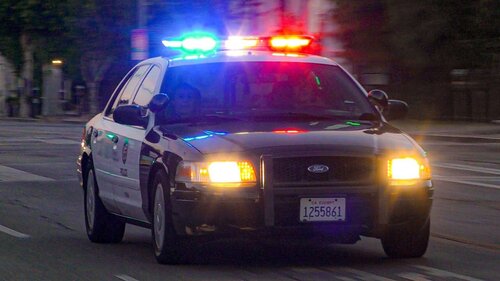
Following the recent release of several CVPIs, I took the opportunity to recreate one of my favorite California police departments and their fleet of CVPIs. This pack includes recreations of Inglewood's CVPIs, featuring regular patrol cars, K-9 units, and a traffic division vehicle. Below, I’ve provided links to the vehicles I used to create these textures. Please note that I’ve only tested these skins on the specific vehicles listed down below, so I can’t guarantee compatibility with others—use them at your own risk and be aware of potential issues.
https://www.lcpdfr.com/downloads/gta5mods/vehiclemodels/49145-non-els-sfpd-crown-victoria/
Also if you wish to see these vehicles in action, check out the video I made on YouTube which showcase all the vehicles in action!
Edited by SkidRowPatrol


![Hanse Modding HMS RTW Vohrführfahrzeug [Lore Friendly] [SKIN]](http://s3-screenshots.int-cdn.lcpdfrusercontent.com/resize/500/-/monthly_2026_05/HMS_RTW_Vohrfhrfahrzeug_01.thumb.png.0fe0f9214e4af6997f54aa7eeb8db863.png)
![Hanse Modding WAS RTW Vohrführfahrzeug [Lore Friendly] [SKIN]](http://s3-screenshots.int-cdn.lcpdfrusercontent.com/resize/500/-/monthly_2026_05/WAS_RTW_Vohrfhrfahrzeug_01.thumb.png.632108b63dd12eb502fbf5d7cfbc5198.png)
![[ELS-Hybrid | DLC/Addon ] Low-Profile z71 Tahoes](http://s3-screenshots.int-cdn.lcpdfrusercontent.com/monthly_2026_05/25_1(1).thumb.png.7bdf0066d86afe565fac5e2684baa3e8.png)

Recommended Comments
Create an account or sign in to comment