


.png.1f1a0935739feba15ed5fc592d55ee11.png)
.png.6b55b2e286302c825c984c02cb15047f.png)
.png.7770d371360ca647cba2d24e5f8fd853.png)
.png.b557c8997386d9903d40b985d41a4203.png)
.png.653a0c57b982d003c5d6c181b6506797.png)
.png.adb00b35c5d0db891801ca677efccebd.png)
.png.217dff485d4ff56830bbbe9751dcd247.png)
.png.ce19f15a6293de6f8185866b890ac797.png)
.png.49fb6d9b101cb8f6ddabc6e04715425e.png)
.png.1328b3bcb27a059801b1bbe1cc02b5e3.png)
.png.28e7d72a820e7ca53a0f9b91f3752433.png)
.png.19007b2b4cc388c69bab73fb35da26ff.png)
.png.02c91060e1881854dde27d7dac5d6b5d.png)
.png.f14704a31d179755ce5344f6305a6cf5.png)
.png.e685f4ce78f96934d9918af874f3e51b.png)
.png.2672b10bee666fd473d33fae799f13a9.png)
.png.93f27b1ad689beeb7bb0144692bd1f84.png)
.png.f8881f21364402f747ea185662d84b38.png)
.png.ae3661101d1cefcbc7e5d2c4a5a6c2b2.png)
.png.dd2900438c86dd608ac8ecfe240163b7.png)
.png.c3918d3672cf8724569152393e2d2735.png)
.png.4d72887d577dd8aa5692db7ac0a2d9bc.png)
.png.59d88a0ac99ad81897817fa04eafb22a.png)
.png.7189d346283194511c9a8e95ec5fa63f.png)
.png.d72ce02f956a4a580c04b6c7c0f4d45b.png)
REQUIRED:
INSTALLING:
Open the .oiv with OpenIV and install it into the mods folder. (The .oiv assumes that you installed the vehicle pack without changing the DLC name)
OR
Using OpenIV, navigate to mods/update/x64/dlcpacks/MODDING/dlc.rpf/x64/levels/gta5/vehicles/vehicles.rpf
Drag and drop the .ytd files into the directory (Make sure editing mode is on)
MODDING is the DLC folder used when installing Thero's state pack.
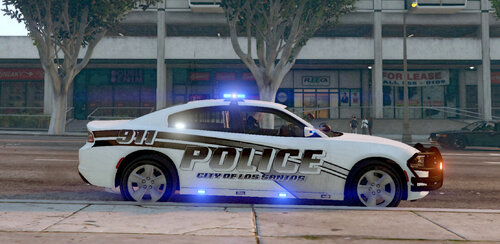
This is my first attempt at making any kind of livery for a vehicle so feedback is appreciated.
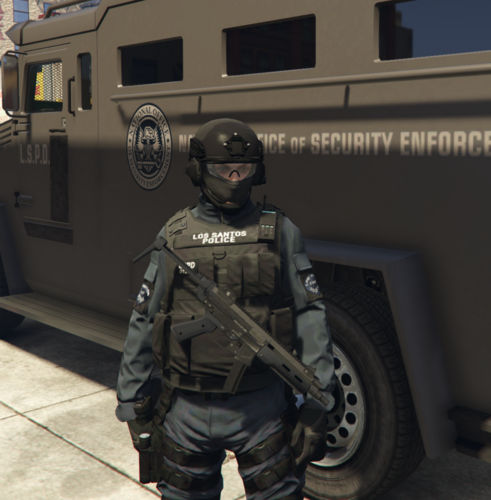
All 7 vehicles for H.E.A.T have a custom livery.
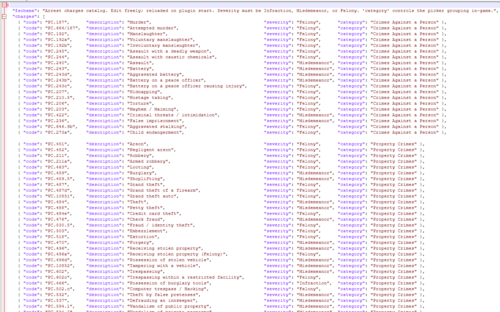
I have customized XML files that utilize all the vehicles from Thero's Service Pack
During a pursuit, you can call for H.E.A.T backup in UB. There is also a H.E.A.T agency you can use.
I eventually plan to make H.E.A.T variants for clothes and add them to the peds.
Edited by superqwerty11112
Changed Name
What's New in Version 1.1
Released
-- 1.1 5/24/2024 --
+ Changed the red color to be darker
Updated Images (Using NVE)
-- --
+ Also Added Option to Only Install the OIV File
-- --
+ Added OIV Installer
Template files are still available for manual installation.


![[ELS-Hybrid | DLC/Addon ] Low-Profile z71 Tahoes](http://s3-screenshots.int-cdn.lcpdfrusercontent.com/monthly_2026_05/25_1(1).thumb.png.7bdf0066d86afe565fac5e2684baa3e8.png)




![[ELS][REPLACE] 2020 Skoda Octavia Městská policie Praha (New design)](http://s3-screenshots.int-cdn.lcpdfrusercontent.com/resize/500/-/monthly_2026_05/20260514222354_1.thumb.jpg.dedd1cd5cdf14716666af6abfa71508d.jpg)


.thumb.png.a0f80464539c2dd42ee2519c1bda91f2.png)

![Generic Whelen 2023 F150 B/B [FiveM & Single Player]](http://s3-screenshots.int-cdn.lcpdfrusercontent.com/monthly_2026_05/enb2026_5_13_15_23_48_06.thumb.png.ecbdfb941234f496e3fd959033f602d4.png)

Recommended Comments
Create an account or sign in to comment