



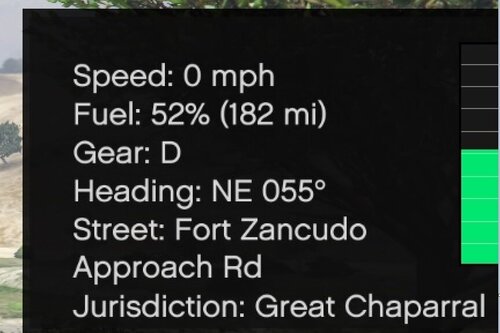
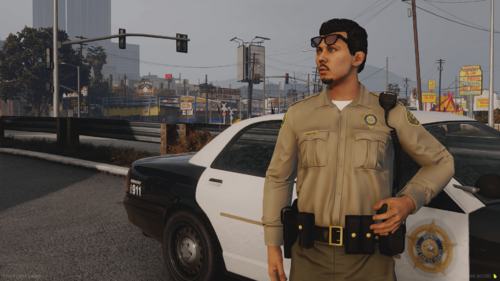
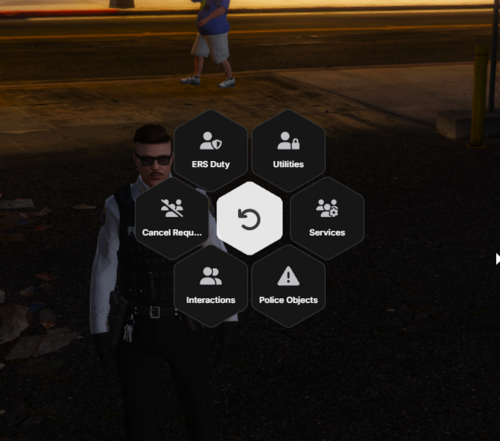
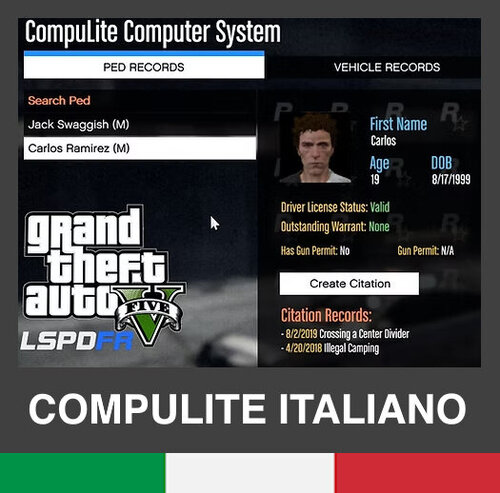
this is a universal police computer that any dept can use. hope you like it as much as i do.
all credits goes to OfcRuszkowski
A better way to browse. Learn more.
A full-screen app on your home screen with push notifications, badges and more.

this is a universal police computer that any dept can use. hope you like it as much as i do.

.thumb.jpg.5d87250f4558cca01dcb5407f198bdc4.jpg)
![Volkswagen Caddy Police Algérienne [ELS]](http://s3-screenshots.int-cdn.lcpdfrusercontent.com/resize/500/-/monthly_2026_04/Screenshot(200).thumb.png.983ad724461fb7ca522523f1ee0c47bc.png)
![Peugeot Rifter Police Algérienne [Banalisée | UNMARKED | ELS]](http://s3-screenshots.int-cdn.lcpdfrusercontent.com/resize/500/-/monthly_2026_04/Screenshot(195).thumb.png.41d1bf36da7fd817e611097fa7f43bd6.png)
![Volkswagen Polo Police Algérienne [ELS]](http://s3-screenshots.int-cdn.lcpdfrusercontent.com/resize/500/-/monthly_2026_04/Screenshot(184).thumb.png.5e13badb0b1e257f42b5d1151d15ea32.png)

![Hyundai Santa Fe - Gendarmerie Nationale Algérie [ELS]](http://s3-screenshots.int-cdn.lcpdfrusercontent.com/resize/500/-/monthly_2026_04/Screenshot(179).thumb.png.7f008e24d4120468425f63dbcf8bfe00.png)
![Peugeot Rifter Police Algérienne [ELS]](http://s3-screenshots.int-cdn.lcpdfrusercontent.com/resize/500/-/monthly_2026_04/Screenshot(173).thumb.png.259625b938895a99d2684db5c407fb95.png)
![Las Vegas Metropolitan Police Department [4K]](http://s3-screenshots.int-cdn.lcpdfrusercontent.com/resize/500/-/monthly_2026_04/Screenshot_2538.thumb.png.be28d4a451840ad0743f583bbd35561e.png)

Recommended Comments
Create an account or sign in to comment