




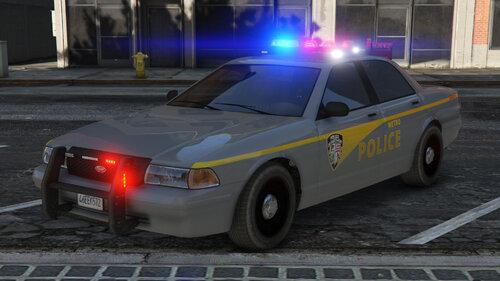
Based on the real life New York City Sheriff's Office, these two liveries are made for Vx5voltage's V2 Stanier.
This is ONLY a livery addon for the "IV Style 2nd Gen Vapid Staniers | Police | Noose | Taxi | V .10"
/All model rights belong to the original people credited with the mod. (Vx5voltage, GCT)
/All image/decal rights used on the vehicles belong to their original owners, and if credit
is required or requested, then it would be given.
/This best works with Sam's area livery mod for GTA4.
Because this is my first attempt, some things
maybe abit wonky and not 100% alligned but I've tried my best. These liveries are purposed to
replace the livery/liveries made for the 'police' vehicle in Vx5voltage's mod, however can be
repurposed to be fit onto the noose.wtd if you rename the livery names to correspond with the
names of the police cars.
Once you have installed the police.wtd files, drag them into the vehicles.img in
GTAIV/pc/models/cdimages/vehicles.img
After this has been completed, you should then move into the "police.wtd" file and drag the
liveries inside. Make sure that +livery has been added to the end of the "police" line in vehicles.ide
to allow the vehicle to have multiple liveries
Short Description
- AlexanderLB - Higher Quality Vapid Stanier Badge Textures
- Vx5 Voltage - Various Textureworks and Enhancements, LCPD/NoOSE/L.C.C Taxi Liveries
- Vx5 Voltage - 4k Mapped Template
- Stryfaar - HQ IV LCPD and NOoSE Decals
- Monkypolice188 - Modern L.C.C Taxi Decals
[3D ARTISTS:]
- Rockstar Games - Original Car Model, Textures, & Various Vehicle Parts
- GCT - Converted GTA V 2nd Gen Stanier model with GTA IV style panel/door gapping
- Vx5 Voltage - Model Improvements, Bug Fixes, Livery Mapping
- GCT, Vx5 Voltage - Lore Friendly CVPI Style Wheels
[EXTRA CREDITS:]
- Lt Caine - Decals and design idea for the red liveried vehicle.
- Alternateflags - Flag design of the City of Liberty City.
![台灣警車 Taiwan Police Car(2016 Ford Mondeo)[ADD-ON|ELS]](http://s3-screenshots.int-cdn.lcpdfrusercontent.com/resize/500/-/monthly_2026_04/271590_20260403180956_1.thumb.png.553e9d7daaf5ab08616b5417d74f863c.png)






You may only provide a review once you have downloaded the file.
There are no reviews to display.