Skip to content
View in the app

A better way to browse. Learn more.

LCPDFR.com

A full-screen app on your home screen with push notifications, badges and more.

To install this app on iOS and iPadOS
  1. Tap the Share icon in Safari
  2. Scroll the menu and tap Add to Home Screen.
  3. Tap Add in the top-right corner.
To install this app on Android
  1. Tap the 3-dot menu (⋮) in the top-right corner of the browser.
  2. Tap Add to Home screen or Install app.
  3. Confirm by tapping Install.

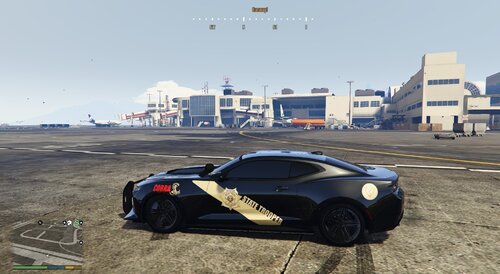
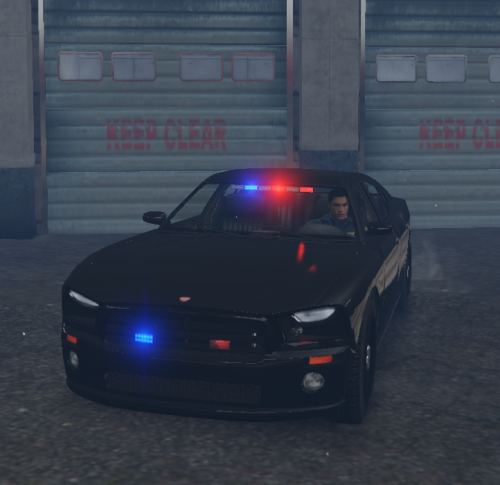
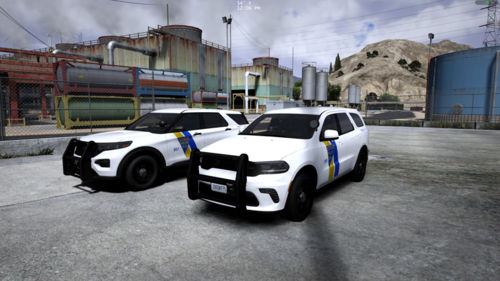
4K GTA V PAPD 2016 FPIU Skin (FiveM Ready) 1.0.0

(0 reviews)

11 Screenshots

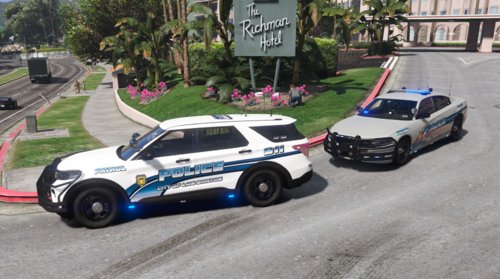
--This is a PAPD 2016 Ford Explorer Skin/ Texture--

----------------------------------------------------------------------------------------------------

-How to install:

Place "exp_sign_1.png" in "16exp.ytd" using OpenIV

----------------------------------------------------------------------------------------------------

-Credit:

(Skin: "Pookie")

(Model: "Dynamic Mods")
----------------------------------------------------------------------------------------------------

-Model Link To Download: 

 
https://www.lcpdfr.com/downloads/gta5mods/vehiclemodels/23358-2016-ford-explorer-ppv-non-els-fivem-ready/

----------------------------------------------------------------------------------------------------

image.png.83b2cc6fc774aece01f6341c157e9222.pngimage.thumb.jpeg.60292bbf6175f6e83790157018519906.jpegimage.thumb.jpeg.05fa84c848645c5be86b1231470e89c0.jpeg


In honor of Port Authority Of New York & New Jersey Police Officer Anthony Varvaro 09-11-2022

Edited by Pookie0102


Short Description

4K GTA V PAPD 2016 FPIU Skin (FiveM Ready)

User Feedback

Recommended Comments

kmann1355

Members

I would definitely use this vehicle if there were other vehicles as well.  You should add the taurus, charger, and tahoe skin. 🙂 


Create an account or sign in to comment

Account

Navigation

Search

Search

Configure browser push notifications

Chrome (Android)
  1. Tap the lock icon next to the address bar.
  2. Tap Permissions → Notifications.
  3. Adjust your preference.
Chrome (Desktop)
  1. Click the padlock icon in the address bar.
  2. Select Site settings.
  3. Find Notifications and adjust your preference.