


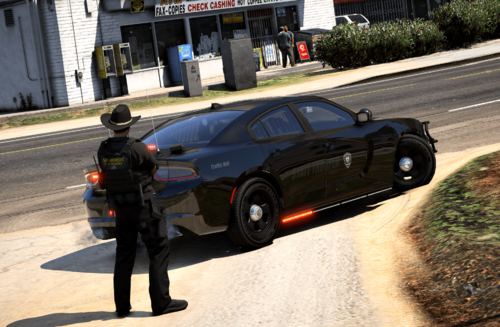
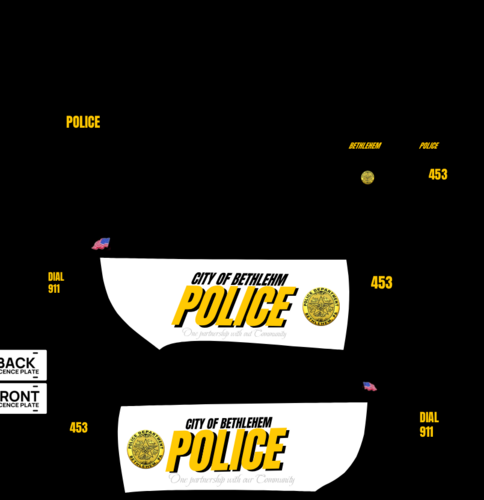
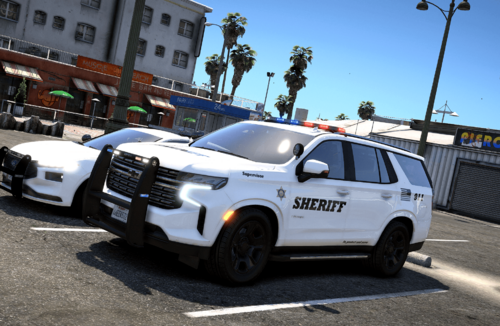
Fourth Skin. 2018 Doge Charger (Blaine County Special Operation)
-------2018 Doge Charger made by Drxpzy qt-------
---DO NOT UPLOAD WITH OUT PERMISSION OF THE CREATOR---
--DO NOT CLAIM THIS TEXTURE AS YOURS--
-THIS IS MY FOURTH TEXTURE EVER-
--MAKE SURE YOU USE A 2018 CHARGER--
-A GOOD ONE IS https://www.lcpdfr.com/downloads/gta5mods/vehiclemodels/23691-2018-dodge-charger-awd-non-els-fivem-ready/ (ONLY FOR FIVEM)-
====================================
INSTALLATIOM GUIDE
====================================
1. Have any type of 2018 Doge charger
2.Go in to OPENIV, Go to the vehicle location (Make sure your in edit mode), then open the ytd.
3. Then in the search bar on the top left search "sign", then chgr_sign_1 should pop up, In the WinRar drag and drop the "Livery_chgr_sign_1" into OPENIV in the ytd.
4. Launch your game and the texture should be there! Enjoy.
How to install Video:
Edited by Drxpzy qt



![Hanse Modding HMS RTW Vohrführfahrzeug [Lore Friendly] [SKIN]](http://s3-screenshots.int-cdn.lcpdfrusercontent.com/resize/500/-/monthly_2026_05/HMS_RTW_Vohrfhrfahrzeug_01.thumb.png.0fe0f9214e4af6997f54aa7eeb8db863.png)
![Hanse Modding WAS RTW Vohrführfahrzeug [Lore Friendly] [SKIN]](http://s3-screenshots.int-cdn.lcpdfrusercontent.com/resize/500/-/monthly_2026_05/WAS_RTW_Vohrfhrfahrzeug_01.thumb.png.632108b63dd12eb502fbf5d7cfbc5198.png)
![[ELS-Hybrid | DLC/Addon ] Low-Profile z71 Tahoes](http://s3-screenshots.int-cdn.lcpdfrusercontent.com/monthly_2026_05/25_1(1).thumb.png.7bdf0066d86afe565fac5e2684baa3e8.png)


Recommended Comments
Create an account or sign in to comment