


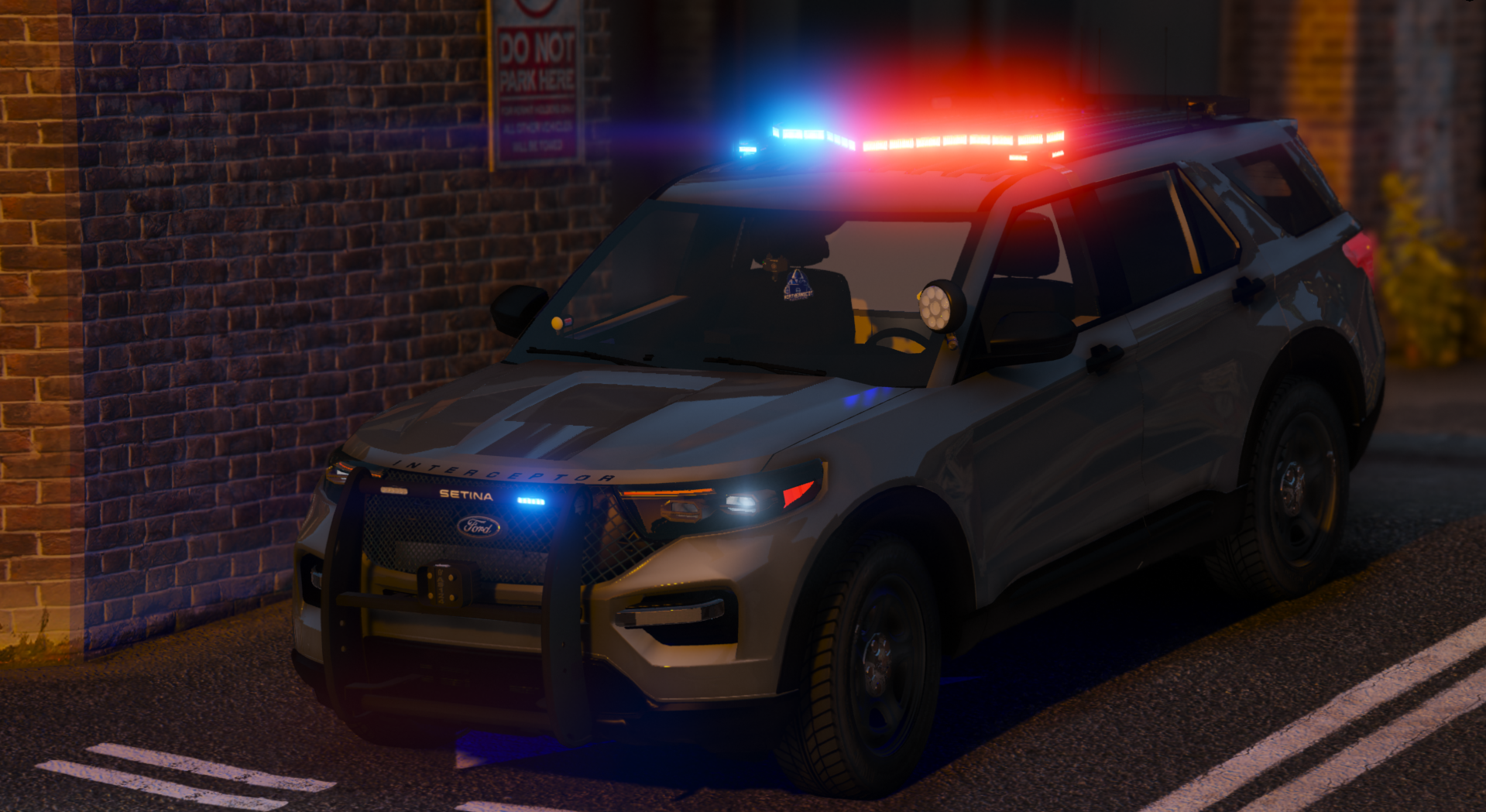


2020 Ford Explorer
Show some support by joining my development discord and helping it hit 800 💓 - DISCORD - Road to 800
Lightbar - Valor
Extras -
Extra 1 - Lightbar
Extra 2 - Visor Bar
Extra 3 - Rear Facing Dominator / TA
Extra 4 - Rambar
Extra 5 - Plate Lights
Extra 6 - ALPRS
Extra 7 - Rotatable Spotlight
3 Wobbly Antennas
Bobble Head
This model will not be as detailed as my Paid release as this is just a teaser to what is to come 💗
Edited by NorthernScot
Short Description
NORTHERNSCOT CUSTOMS
Valor - Dan with the van
Visor bar - https://www.lcpdfr.com/downloads/dev-resources/lightbars/22104-dev-speedtech-lights-interior-lighting-package/
Ions - CEO
Ram bar - HPDeskJet
Base - HPDeskJet
Spotlight - Dan with the van
Antennas - https://gtapolicemods.com/index.php?/files/file/631-dev-generic-antenna-pack/
Dashcam - https://www.lcpdfr.com/downloads/dev-resources/vehicle-parts/25303-watchguard-4re-hd-dash-camera-px-2/
Dominator - https://www.lcpdfr.com/downloads/dev-resources/lightbars/22412-whelen-dominator-dev-pack/
Plate Lights - https://www.lcpdfr.com/downloads/dev-resources/lightbars/20787-whelen-linz6-super-led-lighthead/
Visor bar - https://www.lcpdfr.com/downloads/dev-resources/lightbars/22104-dev-speedtech-lights-interior-lighting-package/
Ions - CEO
Ram bar - HPDeskJet
Base - HPDeskJet
Spotlight - Dan with the van
Antennas - https://gtapolicemods.com/index.php?/files/file/631-dev-generic-antenna-pack/
Dashcam - https://www.lcpdfr.com/downloads/dev-resources/vehicle-parts/25303-watchguard-4re-hd-dash-camera-px-2/
Dominator - https://www.lcpdfr.com/downloads/dev-resources/lightbars/22412-whelen-dominator-dev-pack/
Plate Lights - https://www.lcpdfr.com/downloads/dev-resources/lightbars/20787-whelen-linz6-super-led-lighthead/
- Trooper 18, CrazyCrary and Leslielai
-
 3
3
![[EUP] Met Custody SGT Softshell fleece](http://s3-screenshots.int-cdn.lcpdfrusercontent.com/resize/500/-/monthly_2026_05/metsoftshell.thumb.png.e4097f75eb2b1152517ba60a3dd3c088.png)
![[ELS][REPLACE] Škoda Kodiaq 2018 Czech Police Pack - 3 Variations](http://s3-screenshots.int-cdn.lcpdfrusercontent.com/resize/500/-/monthly_2026_05/20260502191956_1.thumb.jpg.e3466489ca866b63ffeeb7c0dc576069.jpg)




![[EUP] COLP](http://s3-screenshots.int-cdn.lcpdfrusercontent.com/resize/500/-/monthly_2026_05/COL_2.thumb.png.8f6eb8191867522992ea01416d182a80.png)
![[EUP] CBRN](http://s3-screenshots.int-cdn.lcpdfrusercontent.com/resize/500/-/monthly_2026_05/CBRN_2.thumb.png.f03f06680f58ccff02223a2fe99e473b.png)

.thumb.png.bd195e42a078bb7c7f3a1182f03e9694.png)

Recommended Comments
Create an account or sign in to comment