


.png.9326230bb66172121a7b2ec2849a369e.png)
.png.6b86141d42262a009a4c086e59775cd4.png)
.png.4f0b2f20412ddeafd9eda27d30956bd7.png)
.png.14b7a9e6d2172eb50f84c82a76b0c803.png)
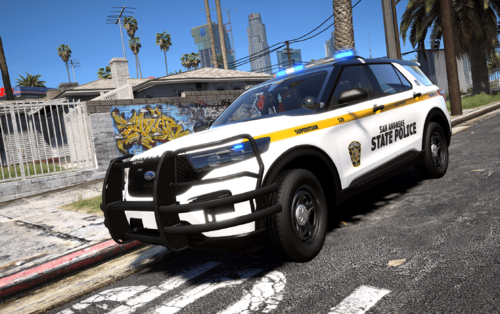
This is my first ever vehicle model and I am pretty excited to release it. It took a lot of time just to learn everything but i was finally able to do it. I did receive a lot of help from @Ripple. He makes pretty sick vehicles so I suggest you check him out. Anyways please leave a comment of what you think.
How to Install:
1. Go To OpenIV and enable "Edit Mode"
2. Navigate to mods>update>x64>dlcpacks>patchday#(latest)>dlc.rpf>x64>gta5>vehicles.rpf
3. Drag and drop your files there and load up Gta
4. Enjoy
***PLEASE DO NOT RIP OR UPLOAD ANYWHERE CLAIMING THAT THIS IS YOURS VEHICLES ARE UNEDITABLE HENCE WHY THEY ARE LOCKED***
thanks 🙂
2016 FPIU: OfficerUnderwood
Whelen Liberty: StraightGlitcheZ
linearlightspack: Bueno
SpeedTech Lights Interior Package: BlueGhost
Generic Rambar: Black Jesus
Setina Flat Panel Partition: eknjack
iForce Workstation: bvmps
Unity 335 Series: Shmurda
Gun Mount: Black Jesus
M16: Walters
Remington m870 Tactical Shotgun: Walters
FPIU Template: OfficerUnderwood
Laguna Beach Skin: tsohl0708 (me)
Whelen Liberty: StraightGlitcheZ
linearlightspack: Bueno
SpeedTech Lights Interior Package: BlueGhost
Generic Rambar: Black Jesus
Setina Flat Panel Partition: eknjack
iForce Workstation: bvmps
Unity 335 Series: Shmurda
Gun Mount: Black Jesus
M16: Walters
Remington m870 Tactical Shotgun: Walters
FPIU Template: OfficerUnderwood
Laguna Beach Skin: tsohl0708 (me)
![[NON-ELS] New Zealand Police Custody Volkswagen Crafter](http://s3-screenshots.int-cdn.lcpdfrusercontent.com/resize/500/-/monthly_2026_05/Screenshot2026-05-11213417.thumb.png.5f9a38c856a4985936c95bf720eb3cfc.png)
![UrbanPlus: World Reimagined [SP/FiveM/RageMP]](http://s3-screenshots.int-cdn.lcpdfrusercontent.com/resize/500/-/monthly_2026_02/UrbanPlus.thumb.png.1f880ad3aba8d1ef3de85efd47dfae6f.png)

.thumb.png.a0f80464539c2dd42ee2519c1bda91f2.png)

![[ELS][REPLACE] Volkswagen Transporter T6 - Czech Policie](http://s3-screenshots.int-cdn.lcpdfrusercontent.com/resize/500/-/monthly_2026_05/20260510164507_1.thumb.jpg.aef1db29050d914251fc0c541e207566.jpg)
![[ELS][REPLACE] Škoda Kodiaq Czech Police Pack - 3 Variations](http://s3-screenshots.int-cdn.lcpdfrusercontent.com/resize/500/-/monthly_2026_05/20260510160131_1.thumb.jpg.b60712c0fbf03fceec092a81392685d6.jpg)
![Motorola Radio Audio Replacement [Grammar Police]](http://s3-screenshots.int-cdn.lcpdfrusercontent.com/resize/500/-/monthly_2026_05/Motorola_Solutions_logo_1280x897.thumb.webp.46b09950058e7ae068235d701c8d07a0.webp)
![[DLSv2][32 sirens][Add-On] 2020 FPIU | Advanced DLS Lighting Setup](http://s3-screenshots.int-cdn.lcpdfrusercontent.com/resize/500/-/monthly_2024_08/10.thumb.png.ce2ba254183c6260d262759ef1f5169a.png)

![Tennessee Highway Patrol EUP Pack [LSPDFR & FiveM Ready]](http://s3-screenshots.int-cdn.lcpdfrusercontent.com/resize/500/-/monthly_2026_05/Screenshot2026-05-10143621.thumb.png.106648bb54b942daaf8e26df88467cd4.png)
Recommended Comments
Create an account or sign in to comment