Skip to content
View in the app

A better way to browse. Learn more.

LCPDFR.com

A full-screen app on your home screen with push notifications, badges and more.

To install this app on iOS and iPadOS
  1. Tap the Share icon in Safari
  2. Scroll the menu and tap Add to Home Screen.
  3. Tap Add in the top-right corner.
To install this app on Android
  1. Tap the 3-dot menu (⋮) in the top-right corner of the browser.
  2. Tap Add to Home screen or Install app.
  3. Confirm by tapping Install.

LSPD Retro Pack | 95/98 CVPI 1.0.0

(2 reviews)

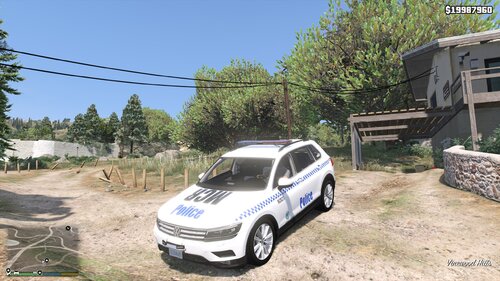
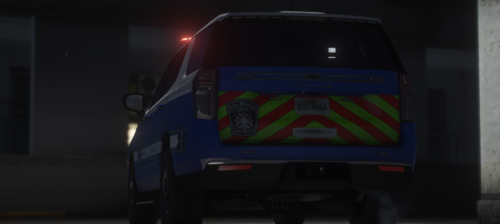
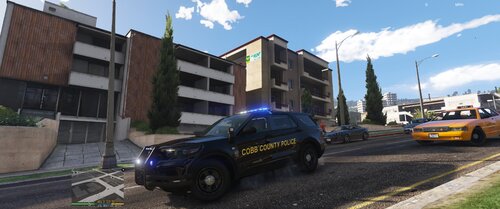
5 Screenshots

LSPD RETRO PACK


Thanks for Downloading, and I hope you enjoy this retro pack. I will be moving away from retro packs soon and will continue to create liverys for police vehicles.

Please contact through messages If you have any recommendations for what Car Pack I should make next.


Installation:

1. Make backups!
2. Drag all files included in the "models" folder into: gtav/mods/update/x64/dlcpacks/(LATEST PATCHDAY)/dlc.rpf/x64>levels/gtav/vehicles.rpf, using OpenIV in edit mode.
3. Drag the vehicles.meta included in the "vehicles.meta" folder into: gtav/mods/update/update.rpf/common/data/levels/gtav, using OpenIV in edit mode.
4. Drag all VCF files in the "ELS" folder into Grand Theft Auto V/ELS/pack_default.


SpawnCodes: ("police")("police2")


User Feedback

Recommended Comments

Rebeltroop

Members Author

Just now, Squad 65YT said:

Is this suppose to be in skins?

Yes, I did not create the model

Wolf Designs

Members

5 minutes ago, Rebeltroop said:

Yes, I did not create the model

The models shouldnt be included then

Rebeltroop

Members Author

1 minute ago, Squad 65YT said:

The models shouldnt be included then

All models I used, and the people that made them are provided in the credits and readme file.

Create an account or sign in to comment

Account

Navigation

Search

Search

Configure browser push notifications

Chrome (Android)
  1. Tap the lock icon next to the address bar.
  2. Tap Permissions → Notifications.
  3. Adjust your preference.
Chrome (Desktop)
  1. Click the padlock icon in the address bar.
  2. Select Site settings.
  3. Find Notifications and adjust your preference.