





Greetings all!
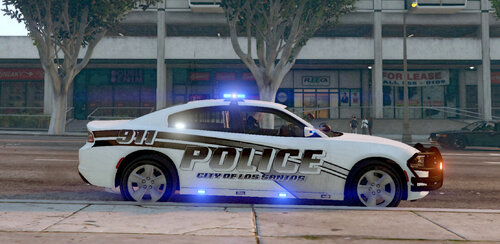
I present to you a project which will be carried out through all different types of departments within Los Santos and San Andreas. The pack will contain mainly fictional vehicle graphics, however, some graphics for some services will be inspired by real-life counterparts. This pack will branch out to everything possible, from a park ranger to mall security. If you have any suggestions upon what can be improved or you'd like to see added in the future. Feel free to drop a comment!
Special thanks are given to @Jedahdiah and @Slendis for their amazing hard work which they put into these vehicle packs!
Contributors;
- @MetaGed - LSPD, BCSO Liveries
- @VauxSkins - SASP Liveries
What the pack contains so far;
- Los Santos Police (Supervisor Skins)
- San Andreas State Police
- Blaine County Sheriff's Office (K-9 Unit)
Future Ideas;
- Security
- Blaine Country Park Rangers
- Park Services
- More SASP/HP
Vehicles Used;
What's New in Version 1.1
Released
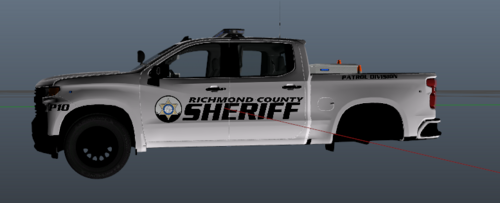
Blaine County Sheriff's Office skin was added.
- Jedahdiah
- Slendis
- MetaGed
- VauxSkins

![[ELS-Hybrid | DLC/Addon ] Low-Profile z71 Tahoes](http://s3-screenshots.int-cdn.lcpdfrusercontent.com/monthly_2026_05/25_1(1).thumb.png.7bdf0066d86afe565fac5e2684baa3e8.png)




![[ELS][REPLACE] 2020 Skoda Octavia Městská policie Praha (New design)](http://s3-screenshots.int-cdn.lcpdfrusercontent.com/resize/500/-/monthly_2026_05/20260514222354_1.thumb.jpg.dedd1cd5cdf14716666af6abfa71508d.jpg)


.thumb.png.a0f80464539c2dd42ee2519c1bda91f2.png)

![Generic Whelen 2023 F150 B/B [FiveM & Single Player]](http://s3-screenshots.int-cdn.lcpdfrusercontent.com/monthly_2026_05/enb2026_5_13_15_23_48_06.thumb.png.ecbdfb941234f496e3fd959033f602d4.png)

Recommended Comments
Create an account or sign in to comment