


Patrol Fort Zancudo with my all newly designed 2017 Ford Raptor, whether it's a basic inside patrol of the Base or an outside perimeter patrol this Raptor is as tough as they come!!! This vehicle is rough and rugged to handle the surrounding mountainous terrain of Fort Zancudo for a real Military Police Patrol!!!
ATTN: When installing my texture to the .YTD file, you must replace all of the Raptor textures in BOTH the regular YTD file, and the HI_YTD file to make it work. (for some reason the author of the vehicle made it that if you just replace the textures in the regular ytd file, it'll still have the authors textures showing up)
Vehicle can be found here!
Credit Trooper Goetz for their awesome and amazing 2017 Ford Raptor!!!!
Do not claim my work as your own, do not upload to any other websites, and FiveM use with my permission!
What's New in Version 4.0.0
Released
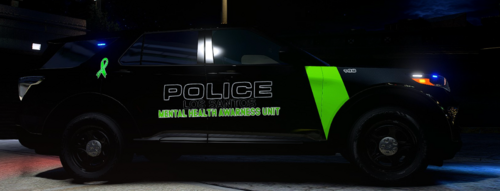
Lowered the Police text on both sides, and made the Flag raising bigger so it sticks out more. ... Also made the green/white livery part a bit bigger to cover more of the vehicle, and I moved the text on the hood.....
Covered the "Army" logo with a Marine Corps. logo
Fixed a few minor things...

![[NON-ELS] New Zealand Police Custody Volkswagen Crafter](http://s3-screenshots.int-cdn.lcpdfrusercontent.com/resize/500/-/monthly_2026_05/Screenshot2026-05-11213417.thumb.png.5f9a38c856a4985936c95bf720eb3cfc.png)
![UrbanPlus: World Reimagined [SP/FiveM/RageMP]](http://s3-screenshots.int-cdn.lcpdfrusercontent.com/resize/500/-/monthly_2026_02/UrbanPlus.thumb.png.1f880ad3aba8d1ef3de85efd47dfae6f.png)

.thumb.png.a0f80464539c2dd42ee2519c1bda91f2.png)

![[ELS][REPLACE] Volkswagen Transporter T6 - Czech Policie](http://s3-screenshots.int-cdn.lcpdfrusercontent.com/resize/500/-/monthly_2026_05/20260510164507_1.thumb.jpg.aef1db29050d914251fc0c541e207566.jpg)
![[ELS][REPLACE] Škoda Kodiaq Czech Police Pack - 3 Variations](http://s3-screenshots.int-cdn.lcpdfrusercontent.com/resize/500/-/monthly_2026_05/20260510160131_1.thumb.jpg.b60712c0fbf03fceec092a81392685d6.jpg)
![Motorola Radio Audio Replacement [Grammar Police]](http://s3-screenshots.int-cdn.lcpdfrusercontent.com/resize/500/-/monthly_2026_05/Motorola_Solutions_logo_1280x897.thumb.webp.46b09950058e7ae068235d701c8d07a0.webp)
![[DLSv2][32 sirens][Add-On] 2020 FPIU | Advanced DLS Lighting Setup](http://s3-screenshots.int-cdn.lcpdfrusercontent.com/resize/500/-/monthly_2024_08/10.thumb.png.ce2ba254183c6260d262759ef1f5169a.png)

![Tennessee Highway Patrol EUP Pack [LSPDFR & FiveM Ready]](http://s3-screenshots.int-cdn.lcpdfrusercontent.com/resize/500/-/monthly_2026_05/Screenshot2026-05-10143621.thumb.png.106648bb54b942daaf8e26df88467cd4.png)
Recommended Comments
Create an account or sign in to comment