Skip to content
View in the app

A better way to browse. Learn more.

LCPDFR.com

A full-screen app on your home screen with push notifications, badges and more.

To install this app on iOS and iPadOS
  1. Tap the Share icon in Safari
  2. Scroll the menu and tap Add to Home Screen.
  3. Tap Add in the top-right corner.
To install this app on Android
  1. Tap the 3-dot menu (⋮) in the top-right corner of the browser.
  2. Tap Add to Home screen or Install app.
  3. Confirm by tapping Install.

No Bullet Traces 1.0.0

(5 reviews)

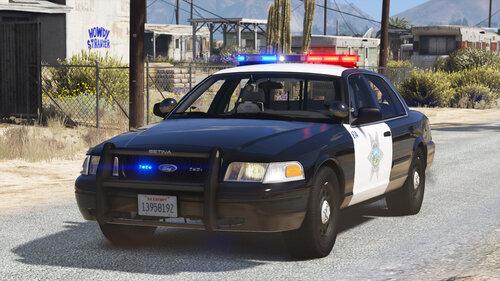
1 Screenshot

This .meta removes the bullet tracer effect that occurs when shooting with any gun.


NOTE:      I recommend making a backup of your weapons.meta, just in case something goes wrong. 
                  If you have made any changes to your weapons.meta file, for custom weapons or whatever, make sure to redo those changes to the .meta file that I provided


Installation:


INSTALLATION FOR UNMODIFIED WEAPONS.META:


    1. Open OpenIV
    2. Navigate to \mods\update\update.rpf\common\data\ai
    3. Replace the weapons.meta with the one provided in this download
    4. Enjoy.

    
INSTALLATION FOR USE WITH THE FOLLOWING SOUND MOD:
https://www.gta5-mods.com/weapons/realistic-shootouts-enhanced-0-9-beta-gtav-weapon-sound-mod


    1. Download No Bullet Traces RSE.zip
    2. Open OpenIV
    3. Install the linked sound mod
    4. Navigate to \mods\update\update.rpf\common\data\ai
    5. Replace the weapons.meta with the one provided in this download
    6. Enjoy.
    
    
INSTALLATION FOR USE WITH THE FOLLOWING SOUND MOD:
https://www.gta5-mods.com/weapons/gun-sounds-overhaul-2-0


    1. Download No Bullet Traces GSO.zip
    2. Open OpenIV
    3. Install the linked sound mod
    4. Navigate to \mods\update\update.rpf\common\data\ai
    5. Replace the weapons.meta with the one provided in this download
    6. Enjoy.


Disclaimer:


Do NOT upload or redistribute without my written permission.

This includes private sharing or uploading to any other website. 


User Feedback

Recommended Comments

Sebo

Members Author

7 minutes ago, Sllickk said:

Hey, I was wondering what line of the weapons.meta I would have to copy and paste to make this work. I have a crosshair removal mod (   https://www.gta5-mods.com/weapons/no-crosshair-realistic-pistol-rate-of-fire/download/10843    )  and I want both to work to really get that realistic feel. Any help would be great, thanks!


Hey, I'd recommend using my meta file, and doing the changes for having no crosshair in in this file.

I've compared the meta in my download with the one used by the mod you linked, and yours is missing a lot of stuff. 

Probably related to the mod not being updated for the last 3 years haha. 

If I find out how to disable the crosshair I'll let you know what to adjust. 

Sherlockk

Members

32 minutes ago, Sebo said:


Hey, I'd recommend using my meta file, and doing the changes for having no crosshair in in this file.

I've compared the meta in my download with the one used by the mod you linked, and yours is missing a lot of stuff. 

Probably related to the mod not being updated for the last 3 years haha. 

If I find out how to disable the crosshair I'll let you know what to adjust. 

Thank you very much!

Sebo

Members Author

1 hour ago, Sllickk said:

Thank you very much!


Looks like you have to replace

<ReticuleStyleHash>WEAPON_PISTOL</ReticuleStyleHash>

with 

<ReticuleStyleHash>WEAPON_INVALID</ReticuleStyleHash>


or whatever weapon you want the crosshair removed for.

Logans

Members

On 3/3/2018 at 6:55 PM, Sebo said:


Looks like you have to replace


<ReticuleStyleHash>WEAPON_PISTOL</ReticuleStyleHash>

with 


<ReticuleStyleHash>WEAPON_INVALID</ReticuleStyleHash>


or whatever weapon you want the crosshair removed for.

Can you explain that in a littleeee more detail please?

Sebo

Members Author

12 hours ago, Logans said:

Can you explain that in a littleeee more detail please?


No, as I've never done that before 😄

Create an account or sign in to comment

Account

Navigation

Search

Search

Configure browser push notifications

Chrome (Android)
  1. Tap the lock icon next to the address bar.
  2. Tap Permissions → Notifications.
  3. Adjust your preference.
Chrome (Desktop)
  1. Click the padlock icon in the address bar.
  2. Select Site settings.
  3. Find Notifications and adjust your preference.