Skip to content
View in the app

A better way to browse. Learn more.

LCPDFR.com

A full-screen app on your home screen with push notifications, badges and more.

To install this app on iOS and iPadOS
  1. Tap the Share icon in Safari
  2. Scroll the menu and tap Add to Home Screen.
  3. Tap Add in the top-right corner.
To install this app on Android
  1. Tap the 3-dot menu (⋮) in the top-right corner of the browser.
  2. Tap Add to Home screen or Install app.
  3. Confirm by tapping Install.

LCPD SUPERVISER SKIN FOR A CROWN VICTORA BETA

(10 reviews)

1 Screenshot

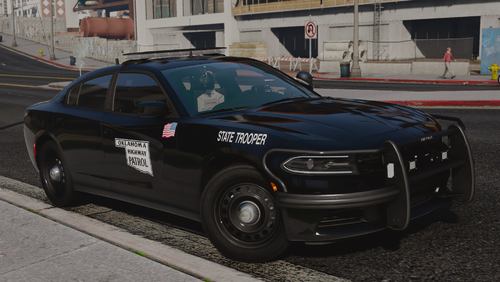
MADE ANY CROWN VIC IT IS A SUPERVISOER SKIN ILL MAKE MORE AFTER
User Feedback

Recommended Comments

First skin?? Dude you spelled Supervisor wrong.

Hilth0

Members

yes its his first upload

Illusionyary

Members

It's his first skin, give him a break.

Deactivated Member

Deactivated

Mispelled Supervisor... All you really did was copy/paste the LCPD logo and make it black and put in some letters. Next time put more pride into it, try using GIMP instead of paint. Sorry, but I just don't like the uploads like this where clearly, minimal effort is put in.

Influenza

Members

Yes its his first skin; but this is still nowhere near the quality needed to make a release.

I made my first skin around last week and as you can see it has much more effort put into it than this.

MichaelV

Friends of LSPDFR

Don't worry. We all start somewhere. Next time, make sure you delete the background of the LCPD logo. Try using a program like GIMP or Paint.NET. I prefer Paint.NET myself. I find it easier to use. Next time though, try to make it more "fancy" with more text and letters. Good first try!

Caesar

Members

Um no. How do you upload your work to a site and not even spell check one of the 3 word that you typed!!

You haven't even uploaded anything >_>

I don't upload my skins. If I do make a skin, I use it for my police clan.

Create an account or sign in to comment

Account

Navigation

Search

Search

Configure browser push notifications

Chrome (Android)
  1. Tap the lock icon next to the address bar.
  2. Tap Permissions → Notifications.
  3. Adjust your preference.
Chrome (Desktop)
  1. Click the padlock icon in the address bar.
  2. Select Site settings.
  3. Find Notifications and adjust your preference.