



.png.647fcc1773f1bdcadeafd98a44aeb3f8.png)
.png.ecc1ac5631604e8d06a4c865069b58c5.png)
.png.0e822bbf64be798ed178d9a91334fae5.png)
.png.bf0939ebbf39b112be924b054f914c1e.png)
Liveries for the BSCO and LSSD that can be used on the vehicle package below.
I DID ONLY CREATE THE LIVERIES, ALL CREDITS FOR THE TEXTURES AND MODELS OF THESE VEHICLES GO TO THEIR RESPECTIVE CREATORS.
About the liveries
The sheriff vehicles will spawn in either Los Santos County or Blaine County liveries. The design is based on the ones from Desoto County, Florida Sheriff's Office.
How to install
1. Download BlackJesus' pack and give him a big thank you on the file page above.
2. Install the vehicles with OpenIV.
3. Go to \mods\update\x64\dlcpacks\patchday14ng\dlc.rpf\x64\levels\gta5\vehicles.rpf\
4. Copy the POLICE2 files into an empty folder, rename them to SHERIFF and put them back.
5. Open sheriff.ytd and browse to chgr_sign_1. Click replace and find the livery in the Dodge Charger folder with number 1. Do this for all 8 liveries.
6. Copy the POLICE3 files into an empty folder, rename them to SHERIFF2 and put them back.
7. Open sheriff2.ytd and browse to explor_sign_1. Click replace and find the livery in the Ford Explorer folder with number 1. Do this for all 4 liveries.
8. Start the game and ENJOY!



.thumb.png.a0f80464539c2dd42ee2519c1bda91f2.png)

![San Andreas State Parks 2018 FPIS [HYBRID]](http://s3-screenshots.int-cdn.lcpdfrusercontent.com/resize/500/-/monthly_2026_05/GrandTheftAutoV-01.thumb.png.410c39ac6a12133975e1fe0f636fc1f4.png)

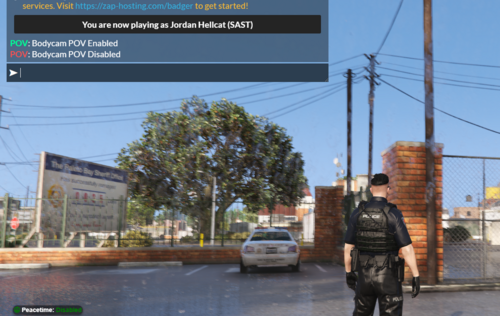

![Los Santos County Sheriff's Office EUP Pack [FiveM & LSPDFR Ready]](http://s3-screenshots.int-cdn.lcpdfrusercontent.com/resize/500/-/monthly_2026_05/Screenshot(362).thumb.png.1c4ef83c5ec20d796ff93960de60c517.png)


![[NON-ELS] New Zealand Police Custody Volkswagen Crafter](http://s3-screenshots.int-cdn.lcpdfrusercontent.com/resize/500/-/monthly_2026_05/Screenshot2026-05-11213417.thumb.png.5f9a38c856a4985936c95bf720eb3cfc.png)


![UrbanPlus: World Reimagined [SP/FiveM/RageMP]](http://s3-screenshots.int-cdn.lcpdfrusercontent.com/resize/500/-/monthly_2026_02/UrbanPlus.thumb.png.1f880ad3aba8d1ef3de85efd47dfae6f.png)
Recommended Comments
Create an account or sign in to comment