


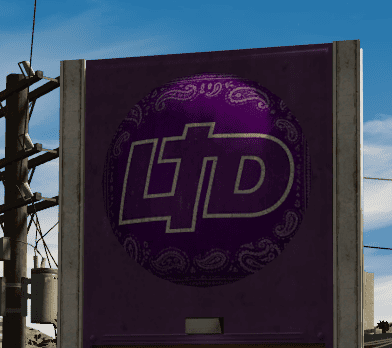
This is my second Texture made for GTA V. These textures edit the Mules and Pounders to add some real life companies to the game and make the game feel more real
Requirements
Latest Version of OpenIV
Legal Copy of GTAV PC
Installation (MULE TEXTURES ONLY)
Run OpenIV
Open update/x64/dlcpacks/patchday3ng/dlc.rpf/x64/levels/gta5/vehicles.rpf
Drag and drop the files in the 'Installation Files' Folder that is provided into vehicles.rpf
Installation (POUNDER TEXTURES ONLY)
Run OpenIV
Open x64e.rpf/Levels/gta5/vehicles.rpf
Thank you for installing and remember to leave a review! If you have any questions or comments please post below!
***Warning***
I am not responsible for any damage you may do to the game or your computer! You may not upload or redistribute this texture without my permission!



![[ELS-Hybrid | DLC/Addon] CalFire Police 2020 FPIU](http://s3-screenshots.int-cdn.lcpdfrusercontent.com/resize/500/-/monthly_2026_07/5.thumb.png.fd9fae70ebad717fa06752e6f9c05923.png)
![{NON ELS} [DLS] (Add-On) 2024 Ford Police Interceptor Utility](http://s3-screenshots.int-cdn.lcpdfrusercontent.com/resize/500/-/monthly_2026_07/Screenshot2026-07-25034154.thumb.png.128dede115443b2b01d09248bbebb8b8.png)
.thumb.png.5cf5796ed5e052d230fd2a5e47833118.png)


![[ELS-Hybrid | DLC/Addon] Oroville Police 2020-2025 FPIU Pack](http://s3-screenshots.int-cdn.lcpdfrusercontent.com/monthly_2026_07/4.thumb.png.643c4e7b1565412c94a6df71a9e2202c.png)
![Blaine County Sheriff Department [DLS v2,REFLECTIVE,ADDON]](http://s3-screenshots.int-cdn.lcpdfrusercontent.com/monthly_2026_07/GTA52026-07-2916-06-41.thumb.png.e0bb5477e2f5952bb1cf073732d4258d.png)



Recommended Comments
Create an account or sign in to comment