


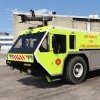


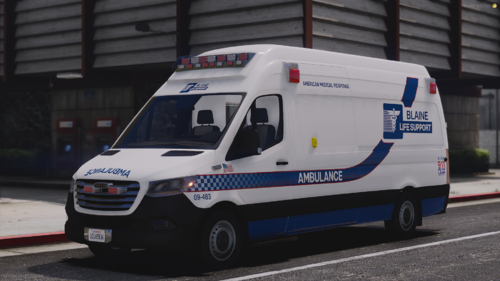
Thanks for checking out my first skin! Suggestions and feedback is always appreciated.
This skin was inspired by the real life LA-X fire trucks and uses in-game logos for Los Santos International Airport and the Los Santos Fire Department.
Check out the real life inspiration if you so choose

_______________________
Thanks to Game68240 for the original model of this truck. Check out his other files on http://www.lcpdfr.com/profile/289284-game68240/ and also https://www.gta5-mods.com/users/Game68240
Also thanks to Kizacudo for the original template. Check out his other work here https://www.gta5-mods.com/users/kizacudo
_______________________
Install
1. First, download the skin
2. Download and install Game68240's HydraMax AERV http://www.lcpdfr.com/files/file/11670-hydramax-aerv-5-skins-template/
3. After you have installed the HydraMax, in OpenIV (edit mode) open the new .ytd and +hi.ytd for the HydraMax and replace aerv_sign_1 with the image in the download
4. Save the file.
5. Launch GTA V and check out your new vehicle skin
_______________________
Kizacudo




![[Non-ELS/DLSv2] LAPD BMW R1200RT-P [Addon/FiveM]](http://s3-screenshots.int-cdn.lcpdfrusercontent.com/monthly_2026_04/1.Thumbnail.thumb.png.ee831bb3bb39882cf936bde4872b0c88.png)







Recommended Comments
Create an account or sign in to comment