


Preview:
https://www.youtube.com/watch?v=Z5eU72IVpgI
Download mirrors:
http://www.mediafire.com/download/tv4vo1n71tk39k9/GTA5+Unmarked+FIB+Oracle+Mk2.rar
https://drive.google.com/file/d/0B-ToRamYotkOYm5JaDJtb1J5R28/view
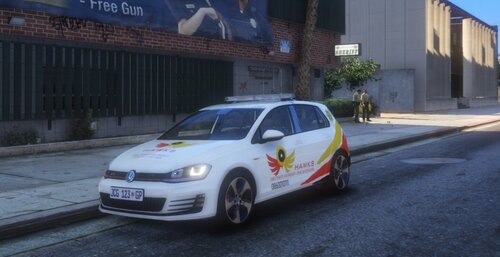
Unmarked FIB Oracle Mk2:
- glass crash
- open for import/edit
Replace files with OpenIV:
fbi_hi.yft
fbi.yft
fbi.ytd
Path for replace FBI files is:
C:\Program Files\Rockstar Games\Grand Theft Auto V\mods\x64e.rpf\levels\gta5\vehicles.rpf\
You may also need:
Install video tutorial:
https://www.youtube.com/watch?v=7WC_IF2Dve0
VisualV + Radiance INSTALL TUTORIAL - Grand Theft Auto 5 Graphic Mods
https://www.youtube.com/watch?v=Mwql7Lra8q0
LSPDFR - How to install ScriptHookV, RageHookPlugin, ASI Loader, OpenIV:
https://www.youtube.com/watch?v=cY1C3ZodCb0
GTA5/ZModeler - Unmarked FIB Oracle Mk2 + InGame Preview + Download
https://www.youtube.com/watch?v=InzwWJTgd1I
For more visit my YouTube channel:
https://www.youtube.com/user/PyteL1555
11 Screenshots
PyteL

![[Non-ELS] [DLS] Pomona Police Dept. Pack](http://s3-screenshots.int-cdn.lcpdfrusercontent.com/resize/500/-/monthly_2026_04/GrandTheftAutoV3_1_20265_48_32PM.thumb.png.da9de7c7cb69bd4ef4b780f06b276018.png)
![台灣警車 Taiwan Police Car(2016 Ford Mondeo)[ADD-ON|ELS]](http://s3-screenshots.int-cdn.lcpdfrusercontent.com/resize/500/-/monthly_2026_04/271590_20260403180956_1.thumb.png.553e9d7daaf5ab08616b5417d74f863c.png)
.thumb.png.a2ffd37207707ce178aa34249cb4795f.png)
.thumb.png.37aea5b9796867ffe512606c9aabc3d5.png)


![[M&F] Emissive Axon 4 Bodycam Pack](http://s3-screenshots.int-cdn.lcpdfrusercontent.com/resize/500/-/monthly_2026_04/title.thumb.png.eeaa910c834edeca3e07a18d977bc3a7.png)
Recommended Comments
Create an account or sign in to comment