Skip to content
View in the app

A better way to browse. Learn more.

LCPDFR.com

A full-screen app on your home screen with push notifications, badges and more.

To install this app on iOS and iPadOS
  1. Tap the Share icon in Safari
  2. Scroll the menu and tap Add to Home Screen.
  3. Tap Add in the top-right corner.
To install this app on Android
  1. Tap the 3-dot menu (⋮) in the top-right corner of the browser.
  2. Tap Add to Home screen or Install app.
  3. Confirm by tapping Install.

Los Gatos Police Department Skins 1.0.0

(0 reviews)

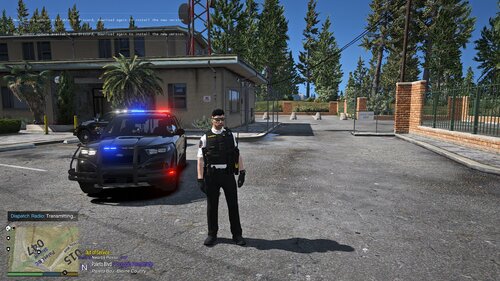
5 Screenshots

This pack was made as a request by: Kyzn10

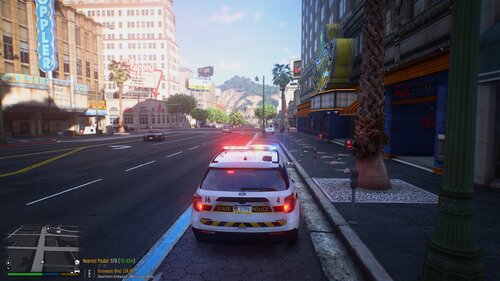
Pack includes Crown Victoria Skin, Tahoe Skin, and Explorer Skin

Tahoe and Explorer Skins are to be used on VVVV   CVPI, pretty sure you can use it on any other vics. If not, let me know. 


User Feedback

Recommended Comments

HBengtson

Members

1) I recommend you use daytime screenshots instead of all nighttime.

2) You know what Los Gatos means, right?

MistahChange

Members Author

7 hours ago, HBengtson said:

1) I recommend you use daytime screenshots instead of all nighttime.

2) You know what Los Gatos means, right?

haha yes I know what Los Gatos means...    I'm not really a fan of daytime setting. but if it makes you happy, I can do that :)

HBengtson

Members

Just now, bboykaruma said:

haha yes I know what Los Gatos means...    I'm not really a fan of daytime setting. but if it makes you happy, I can do that :)

I guess it doesn't necessarily have to be daytime, but there needs to be some light on the car, like in the third screenshot.

MistahChange

Members Author

1 minute ago, HBengtson said:

I guess it doesn't necessarily have to be daytime, but there needs to be some light on the car, like in the third screenshot.

mm I see what you mean. Ill do that in other skins I upload.. :D

Create an account or sign in to comment

Account

Navigation

Search

Search

Configure browser push notifications

Chrome (Android)
  1. Tap the lock icon next to the address bar.
  2. Tap Permissions → Notifications.
  3. Adjust your preference.
Chrome (Desktop)
  1. Click the padlock icon in the address bar.
  2. Select Site settings.
  3. Find Notifications and adjust your preference.